---
title: "Inserting Videos"
description: "Adding videos to your docs can make them more engaging. With HelpDocs you can quickly insert a video by grabbing its URL or embed code and pasting it into the editor. 📹"
url: "https://support.helpdocs.io/article/bwZli3PAWw-inserting-video"
category: "Content Blocks"
updated_at: "2023-04-04T16:10:42Z"
---
# Inserting Videos
Adding videos to your docs can make them more engaging. With HelpDocs you can quickly insert a video by grabbing its URL or embed code and pasting it into the editor 📹
### Inserting a Video by URL
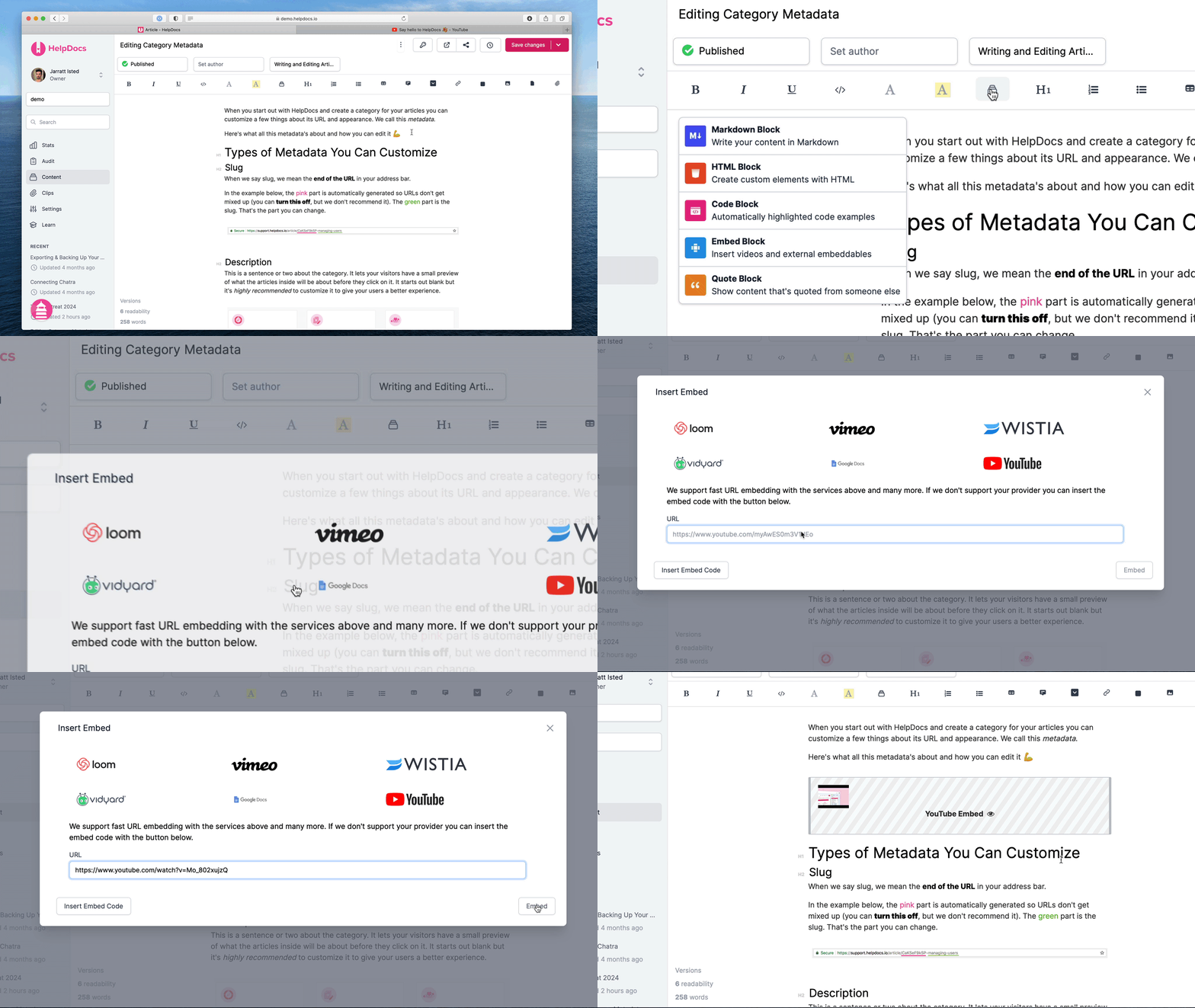
1. Head to the video you want to insert
2. Copy the URL from your browser
3. Click the **Block** icon in the toolbar
4. Click **Embed Block**
5. Paste in the URL
6. Click **Embed**
👁️ Click the eye icon to preview your video to check it's the right one
To embed by URL your video will need to be publicly listed
### Inserting a Video by Embed Code
We might find it difficult to locate your video. In this case you'll need to find the *embed code* for your video.
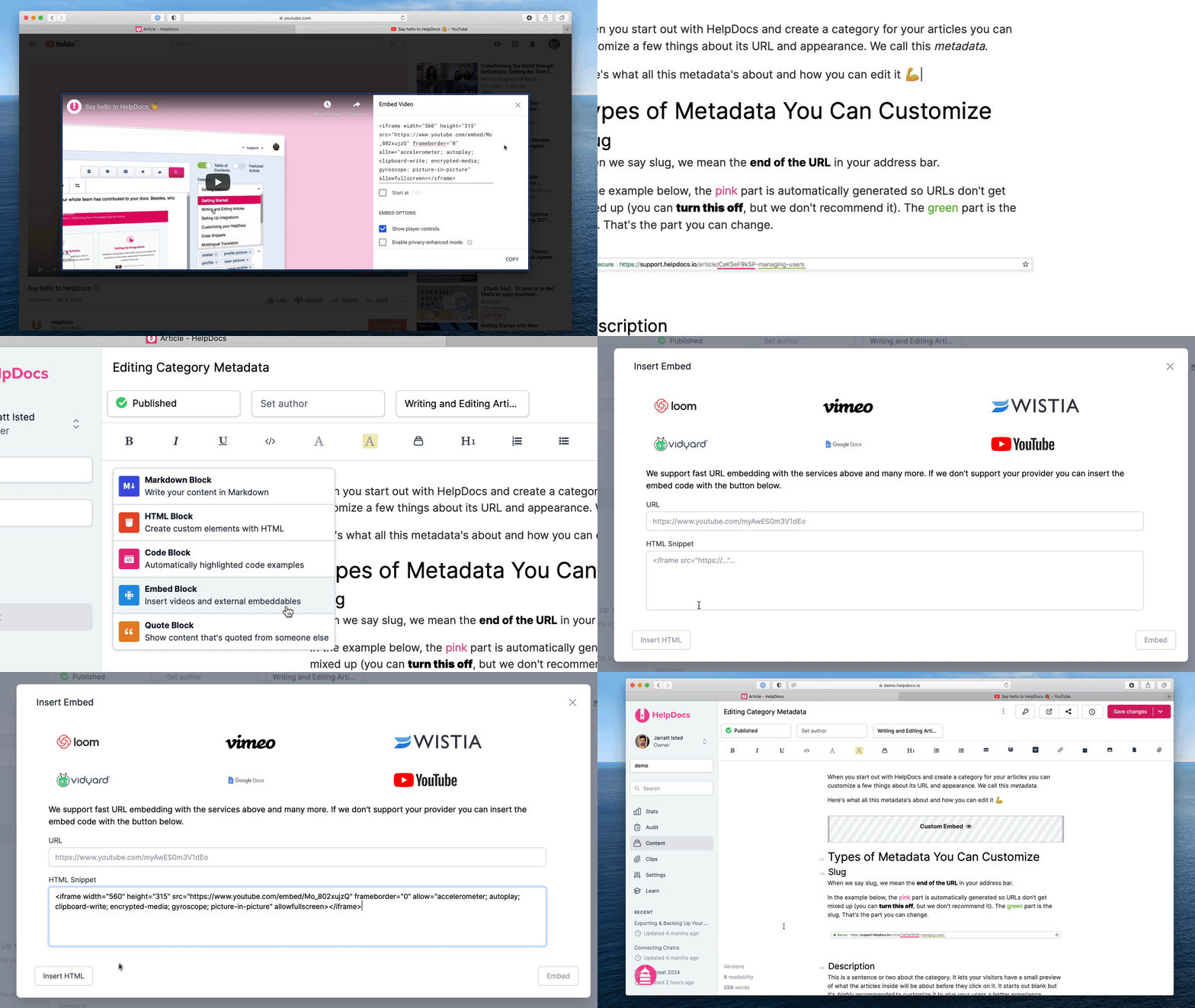
1. Head to the video you want to insert
2. Under the video you should see a button called **Share** or **Embed**
3. Copy the Embed code which should start with `
```