---
title: "Front Chat Integration"
description: "Front Chat gives your team the ability to respond to visitors and customers in real-time straight from your team inbox. Here's how to add your Front Chat widget to HelpDocs."
url: "https://support.helpdocs.io/article/rdRwxUbdOy-front-chat-integration"
category: "Front Integration"
updated_at: "2023-02-08T14:49:36Z"
---

# Front Chat Integration

[Front Chat](https://frontapp.com/chat) gives your team the ability to respond to visitors and customers in real-time straight from your team inbox. 📩 Here's how to add your Front Chat widget to HelpDocs.

### Finding Your Front Chat Token

Before adding the Front Chat widget, you'll need to find your chat token. 

You might need specific permissions to access this, so please check with your team if you can't find the menu in the instructions below. 👌

1. In the **Front email client**
   
   1. Head to **Settings**
   2. Click **Inboxes** under **Company** in the left menu
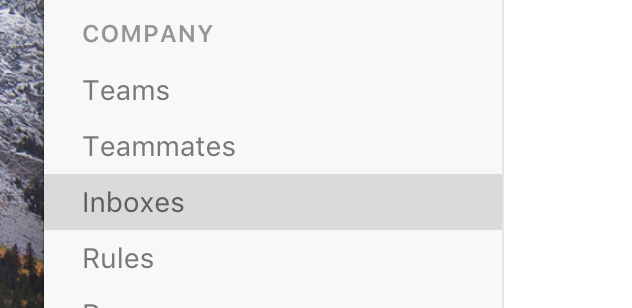
      
      ![Front Chat Inboxes](https://files.helpdocs.io/Ytt2uahFxY/articles/rdRwxUbdOy/1517939997465/screen-shot-2018-02-06-at-17-51-03.png)
   3. Select the **Front Chat inbox** you want to place on your knowledge base
   4. You'll see a list of options. At the bottom, click and expand **Code snippet**
      
      1. Within the Code snippet you'll see text similar to `window.FCSP = '1365d046d7c023e9b030ce90d02d093a';` between `<script>` tags
      2. Copy the token between the ' quotes—**this is your Front Chat token**. In the example above, that would be `1365d046d7c023e9b030ce90d02d093a`
      3. Follow the steps [here](https://support.helpdocs.io/article/rdRwxUbdOy-front-chat-integration#installing_the_front_chat_snippet) to add the widget to your HelpDocs

![](https://files.helpdocs.io/Ytt2uahFxY/articles/rdRwxUbdOy/1591656780617/h-1-kznz-b-26-d.gif)

### Installing the Front Chat Snippet

![](https://files.helpdocs.io/Ytt2uahFxY/articles/rdRwxUbdOy/1611752524566/front-chat.gif)

1. In **HelpDocs**
   
   1. Head to **Settings** &gt; **Integrations**
   2. Find **Front Chat** and click ![](https://files.helpdocs.io/Ytt2uahFxY/articles/rdRwxUbdOy/1611752557879/more-ico.png) **More** &gt; **Connect**
   3. Within the **Front Chat Token** text box paste in your token
   4. Hit **Save changes**

Don't know your Front Chat Token? Follow our guide [here](https://support.helpdocs.io/article/rdRwxUbdOy-front-chat-integration#finding_your_front_chat_token).

### Integrating with Lighthouse

Wanna use Lighthouse and Front Chat together so clicking contact brings up the Front Chat widget? You'll need to change the Front Chat code snippet slightly by changing `useDefaultLauncher: true` to `useDefaultLauncher: false` 👇

```
<script src="https://chat-assets.frontapp.com/v1/chat.bundle.js"></script>
<script>
    window.FrontChat('init', {
        chatId: 'CHAT_ID', useDefaultLauncher: false
    });
</script>
```
