Connect HelpDocs to ChatGPT
MCP lets ChatGPT connect to HelpDocs to read, search, and manage Knowledge Base content directly. Workspace admins can set up and publish the integration.
Updated
by River Sloane
Model Context Protocol (MCP) lets you connect ChatGPT to your HelpDocs account so it can read, search, and work with your Knowledge Base content directly. This guide shows you how to set up the connection with ChatGPT and what you can do with it.
Only workspace admins or owners can do this if on a ChatGPT Business plan.
What is MCP? 🤔
MCP (Model Context Protocol) is a way for AI assistants like ChatGPT to connect to external tools and data sources. It gives ChatGPT the ability to interact with your HelpDocs content in real-time. Learn more about it in our article over here.
Connecting ChatGPT to HelpDocs MCP
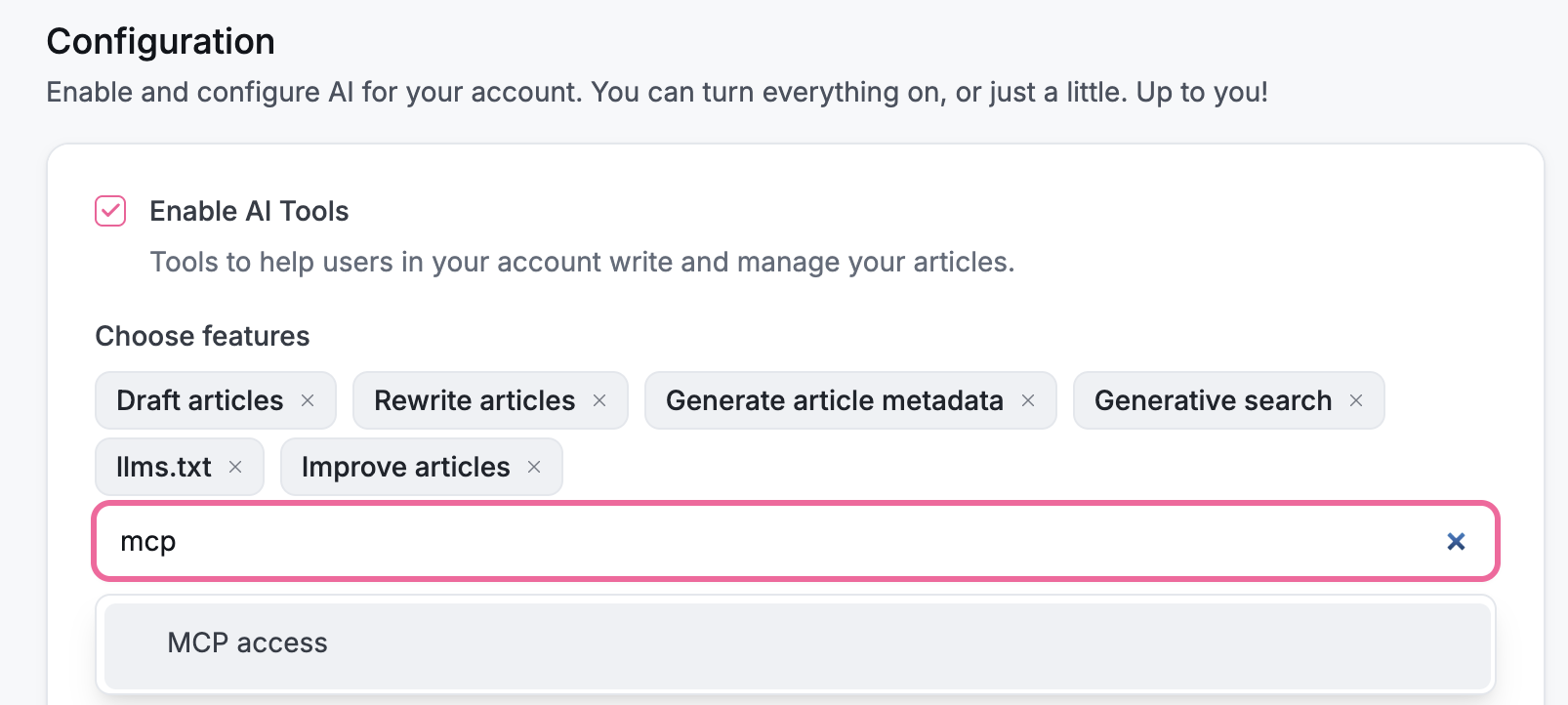
Enable MCP in your HelpDocs settings
- Head to Settings > AI (or click here)
- Under the Choose features dropdown, select MCP access
- Click Save changes
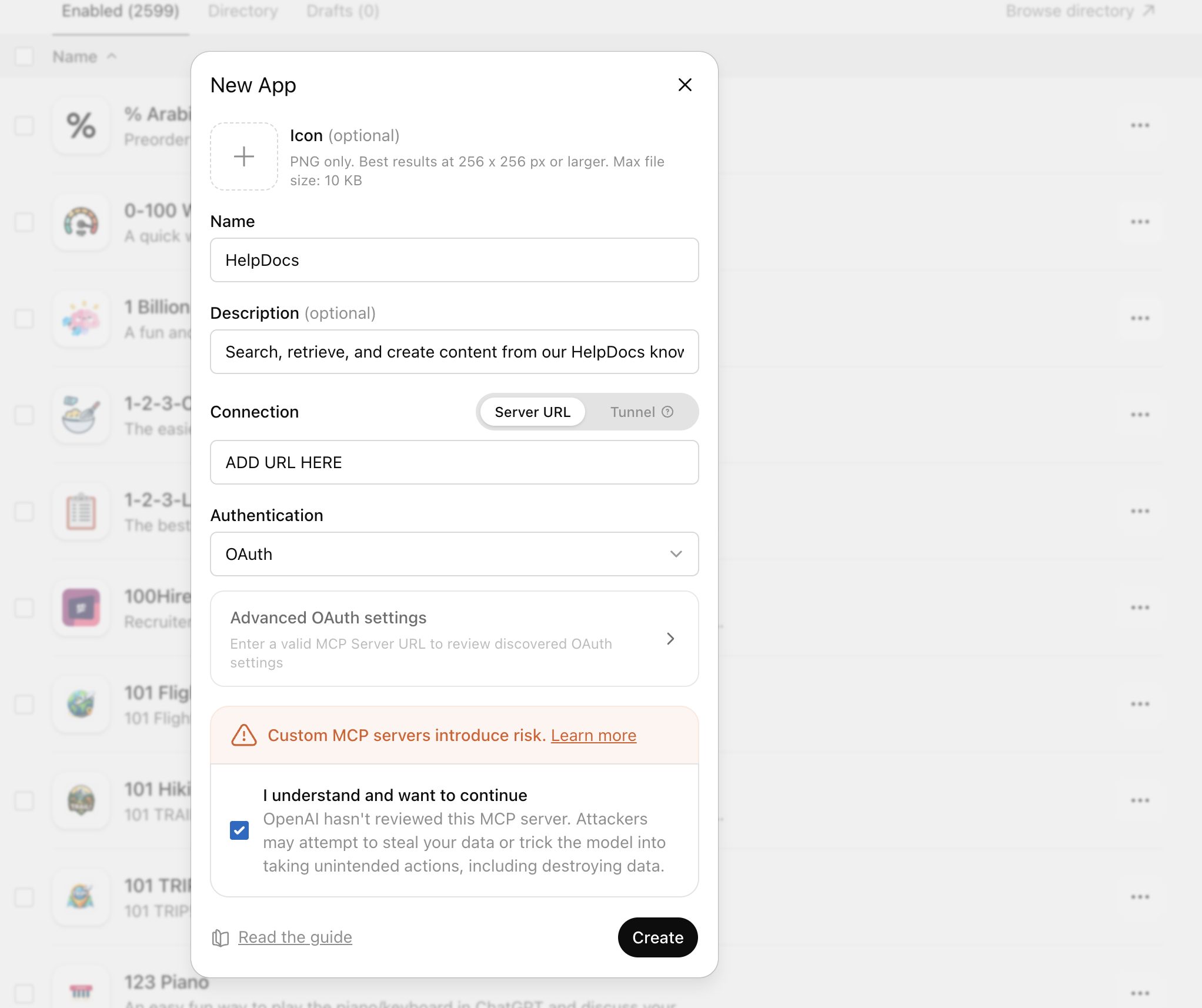
Create app with ChatGPT on the web
- Go to Workspace settings → Apps → Create
- Enable Developer mode when prompted
- Enter details:
Logo: You can download our logo from here
Name: HelpDocs
Description: Search, retrieve, and create content from our HelpDocs knowledge base
Authentication: OAuth
Connection:
https://••••••••••••••••••••••••••
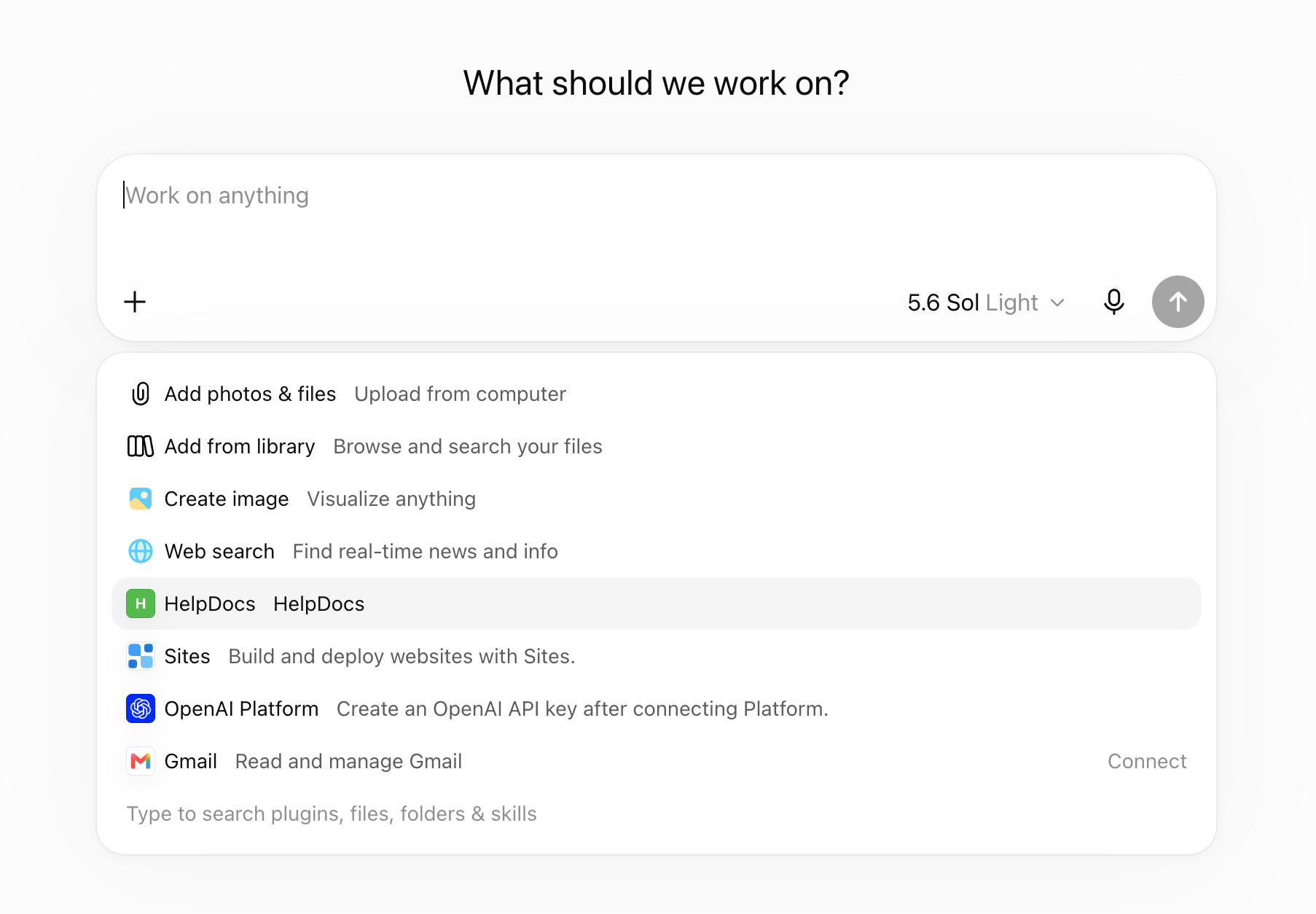
Start using the HelpDocs plugin with ChatGPT
- The HelpDocs app will appear under Settings → Apps → Enabled Apps with a Dev label
- Start a new chat, click the + button, and select HelpDocs
A ChatGPT admin or owner on your account can publish it to the rest of the workspace from Workspace settings → Apps → Drafts → Publish
What did you think of this doc?
Overview of HelpDocs MCP
Connect HelpDocs to Claude
