
The internet is a busy place, and a share of the traffic hitting any knowledge base comes from bots, scrapers, headless browsers, and assorted automated clients rather than people with a question. That's just the nature of being online.
But non-human traffic has got more sophisticated over time. We've always filtered your traffic before it gets to your knowledge base, but now it's more difficult to recognize what's human and what's not. So we've added another layer over the top of your stats to give you more control.
Spam Filters now give you a new layer of control over how much of that shows up in your Stats.
Flip it on and HelpDocs analyzes incoming traffic and pulls the suspicious traffic out of your Overview, Feedback, Health, and Search tabs, so you can look at a view that's just the humans whenever you want it.
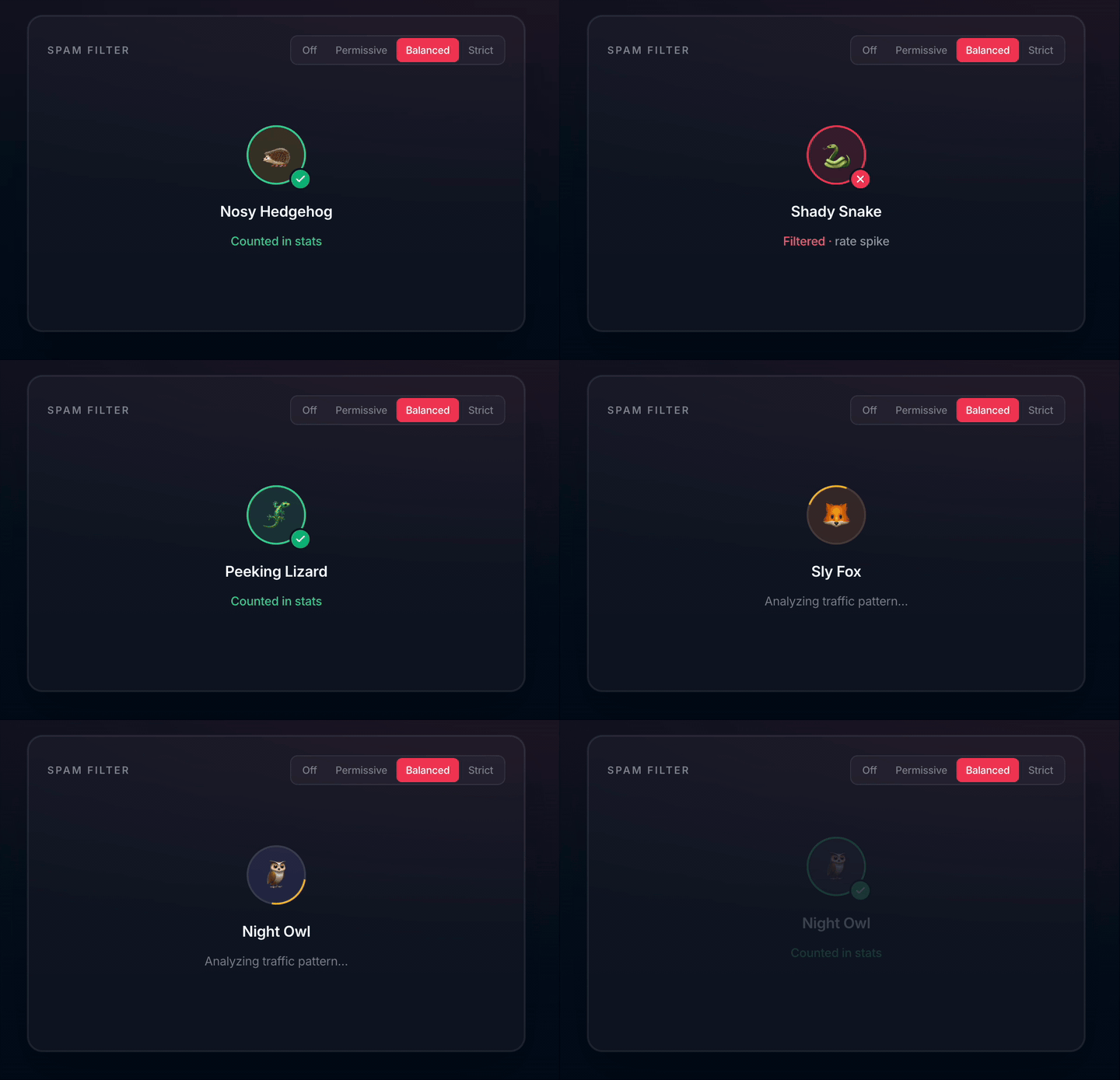
You get four levels to choose from, depending on how aggressive you want to be:
- Off. Every request shows up, exactly like before. Handy when you want the raw numbers, or you're comparing against older reports from before the filter existed.
- Permissive. Hides only the traffic we're highly confident is automated. Barely touches real visitors, good if you'd rather include everything and only cut the obvious bots.
- Balanced (recommended). Hides traffic showing multiple signs of being automated. A few real visitors on unusual browser setups might get caught, but this is the sweet spot for most accounts, so it's the default.
- Strict. Hides anything with even a single automated signal. It'll catch a meaningful number of real people too, especially folks on privacy-focused browsers, so only reach for this if bot traffic is genuinely out of hand and you'd rather lose a few humans than see any noise.
Why we built it
Different questions want different views of your data. Sometimes you want the full picture, every request included. Other times you want to zoom in on just the humans, when you're reading a search report to spot content gaps, say, or checking whether a page's feedback dip is real readers telling you something. Spam Filters let you switch between those views instead of being stuck with one.
We built it as a dial rather than a decision we make for you. Automated traffic looks different on every knowledge base, so you pick the level that fits yours, and change it whenever the question you're asking changes. It's another lens on your Stats. Pop it on when it's useful, leave it Off when you want the raw numbers.
How to get started
- Head to Stats
- Click the Filter button in the top-right
- Find the Spam filter dropdown in the popover
- Pick your level (start with Balanced)
- Hit Apply Filters
Your Stats update straight away, and you can switch levels anytime to see how each one reshapes the picture. Try flicking between Off and Balanced on a busy report. The gap is usually the eye-opener.