Table of Contents
Introduction to the Block Editor
New Block Editor: Write smarter, not harder. Slash commands, instant block changes, pure documentation magic! 🚀

Table of Contents
The Block Editor gives you a flexible, intuitive writing experience. It comes with powerful capabilities that make content creation effortless:
- Drag and drop editing: Move elements around your article with ease
- Smart element conversion: Transform content types without starting over
- Enhanced performance: Faster loading and smoother editing experience
- Improved user experience: Cleaner interface with better accessibility
Using Slash Commands
Slash commands are how you add content in the Block Editor. Instead of hunting through toolbar buttons, you can bring up contextual menus that keep your workflow speedy.
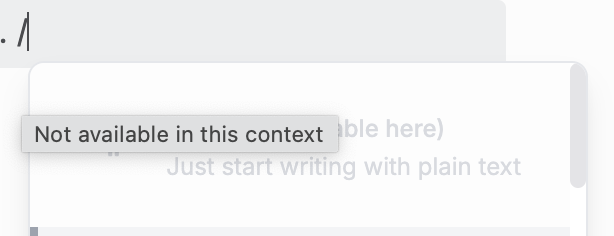
Simply type / anywhere in your article and you'll see a menu of options. Want to add a callout? Type /tip or /note. Need a code block? Try /code. It's that simple. Check out the full list of shortcuts and commands to discover everything you can do.
You can also do this inside a current block. So if you want an image inside a text block, just type /image and it drops right in, all without clicking ☺️
Getting Started with the Block Editor
Ready to dive in? The Block Editor includes all the content blocks you know and love, like HTML blocks, code blocks, and quote blocks.
Learn more about working with blocks, or check out Formatting & Styling Content for more advanced formatting tools. Start typing and use slash commands to explore. You'll quickly discover that this approach makes writing documentation fast and enjoyable ✨
What did you think of this doc?
Upgrading to the Blocks Editor
Working with Blocks
