Table of Contents
Upgrading to the Block Editor
Upgrade to the Block editor for easier article creation with less clicking, a cleaner interface, and powerful new features. Takes just a few clicks, and your content is preserved.

Table of Contents
The new Block editor makes creating and editing articles easier than ever. With less clicking, a cleaner interface, more content elements, and the ability to transform and reorder blocks on the fly, it's designed to speed up your workflow. Plus, there are exciting new features on the way!
Ready to make the switch? Here's everything you need to know.
Identifying the Classic Editor
Not sure which editor you're using? Here's how to tell:
The Classic editor doesn't support slash commands. Try typing / in your article and if nothing happens, you're in the Classic editor. When you're using the Classic text editor, you'll notice a toolbar at the top of your editor with buttons for formatting (highlighted in red below).
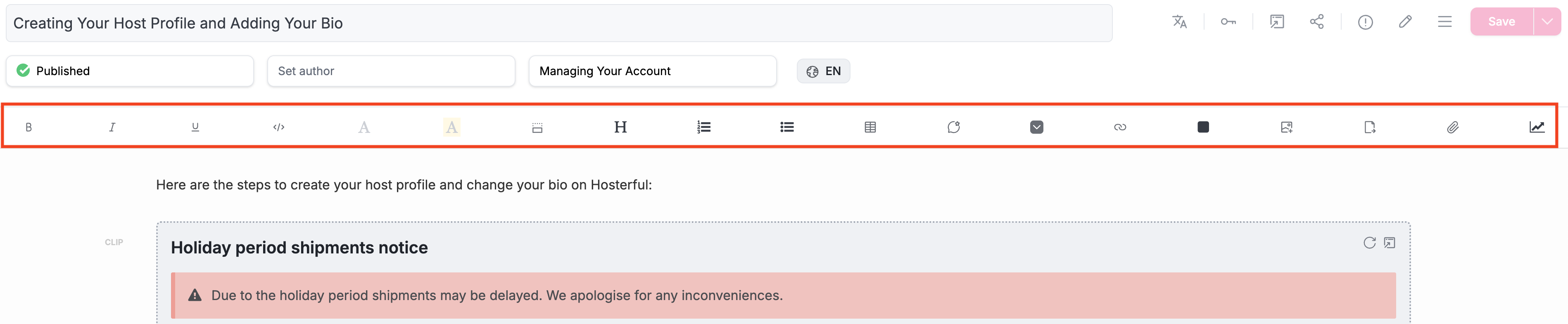
You can also click the ⋯ More button in the top right. The Editor row names the editor your article uses.
How to Upgrade
Upgrading to the Block editor takes just a few clicks:
- Head to the article you want to upgrade
- Click Switch to Block editor under the Save button in the top right corner
- Click Save to complete the switch
Once you've upgraded, you'll have access to all the powerful features the Block editor offers. You can start using slash commands, drag and drop blocks, and enjoy a more streamlined editing experience ✨
What's Next?
Now that you've upgraded, take some time to explore what the Block editor can do. Check out our Introduction to the Block Editor to learn about slash commands and other features, or dive into Working with Blocks to master the basics.
Happy editing 🎉
Your content will be preserved when you upgrade. It might look slightly different in the editor, but we've worked hard to maintain all your formatting. If something looks off, just reach out and we'll help you sort it out
What did you think of this doc?
Introduction to the Block Editor
