

Use the Rewrite feature to refine or expand an existing article with HelpDocs AI. The AI produces a new draft from your article and your instructions, and you choose whether to keep it.
- Save any changes
- Click
 Rewrite in the bar at the bottom right of the editor

- Under Requested changes, describe what you want added, removed, or reworded.
- Pick a Style. Existing keeps your article's current voice, or choose Neutral, Casual, Technical, or Custom to describe your own. If your team enforces a default style, you won't see this option.
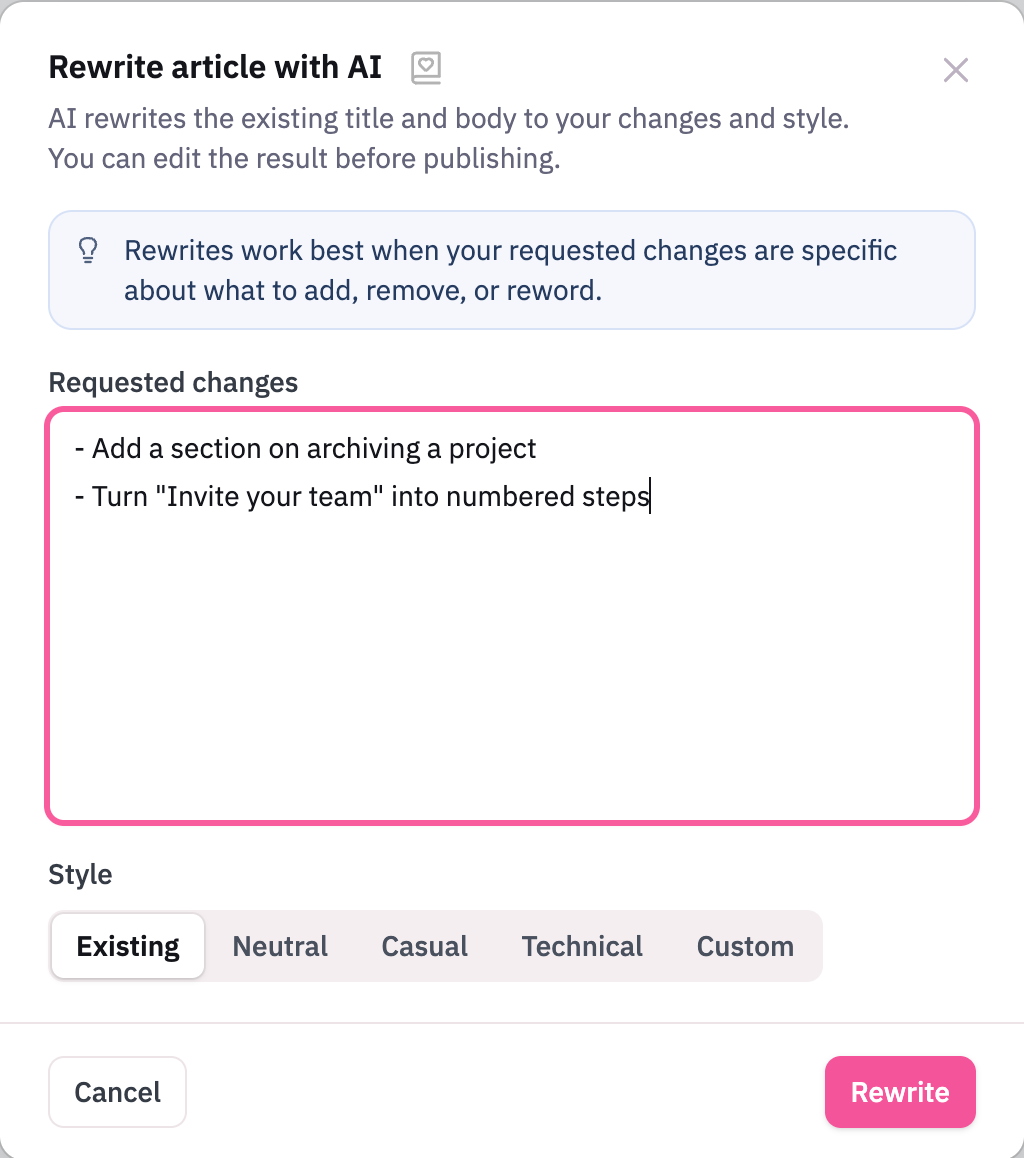
- Click Rewrite
- Save any changes
- Highlight the content you'd like to rewrite
- Click the
 Rewrite button in the inline toolbar

- In the modal, write what you'd like to change
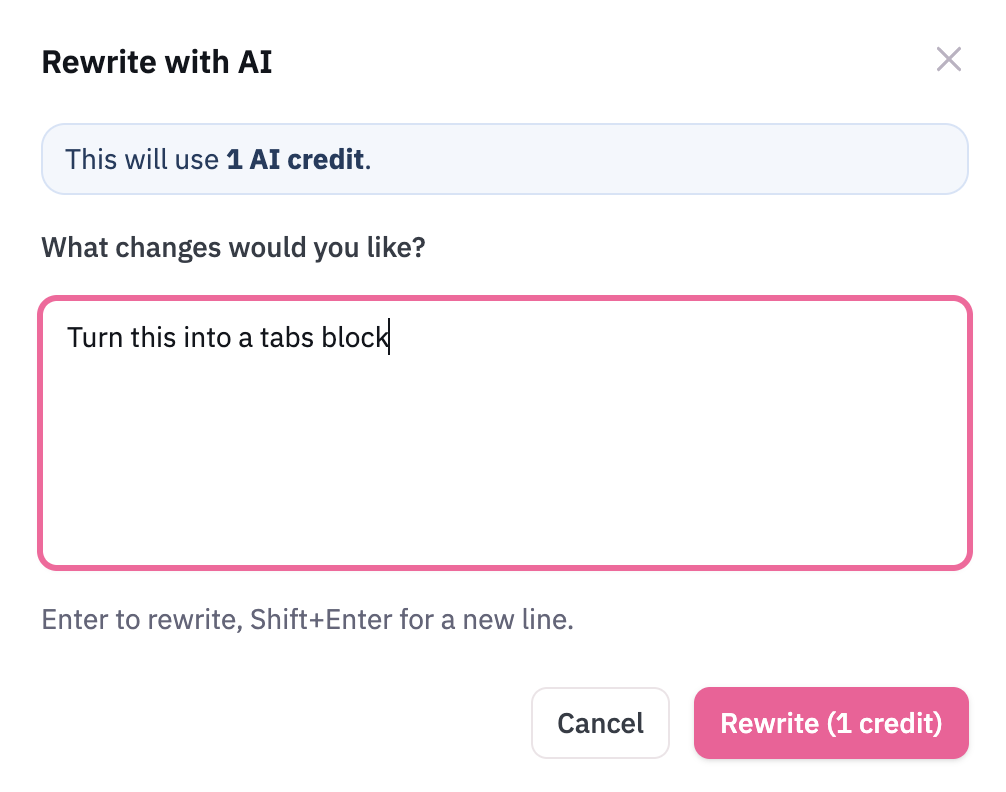
- Hit Rewrite to start the process
Rewriting the whole article vs selecting content
You have two ways to rewrite. Both give you a draft to review, so the real question is how much of your article you want the AI to touch.
Option | Best for | Why use it |
|---|---|---|
Rewrite entire article | Changes that affect the whole piece, like a new tone, a simpler reading level, or a fresh structure | The AI sees the full article, so the voice and flow stay consistent from top to bottom. You also get to pick a Style and review any changes before updating. |
Select content to rewrite | Small, targeted edits like fixing one confusing paragraph, turning a list into a table, or updating a single step | Everything you did not highlight stays exactly as it is. It's quicker to review and there is less to double-check. |
Example prompts to try
Not sure what to ask for? Clear, specific prompts get the best drafts. Here are some ideas to get you started 🪄
Goal | Example prompt |
|---|---|
Simplify | Rewrite this for a beginner. Use short sentences and avoid jargon. |
Shorten | Cut this down to the essentials. Keep every step but remove repeated explanations. |
Expand | Add more detail to each step and explain why it matters. |
Change the tone | Make this friendlier and more conversational, but keep it professional. |
Add structure | Break this into clear sections with headings and turn long paragraphs into numbered steps. |
Use a table | Turn the bulleted list of options into a table with a column for each setting and what it does. |
Add examples | Add a short real-world example after each section. |
Add a summary | Add a quick summary at the top so readers know what they will learn. |
Fix clarity | Reword any confusing sentences and make sure each step has one clear action. |
Update for a change | Update this article to say the button is now called Save draft. Leave everything else as it is. |
To write a new article instead of rewriting one, see Drafting an Article with AI.