

Ready to revolutionize your article creation process? Let's dive into how HelpDocs AIcan help you draft and rewrite amazing content.
This guide will walk you through creating AI-generated articles that are both informative and tailored to your needs.
How to spot when it's HelpDocs AI 👀
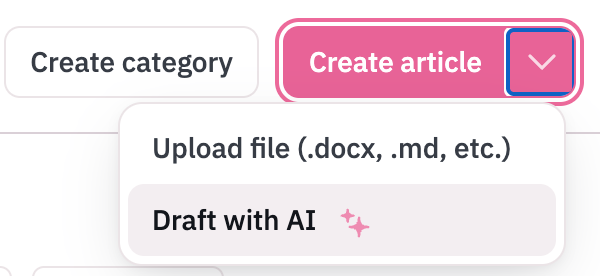
Look for the pink sparkle icon  when using HelpDocs AI. You'll find it in dropdown items or as a clickable icon
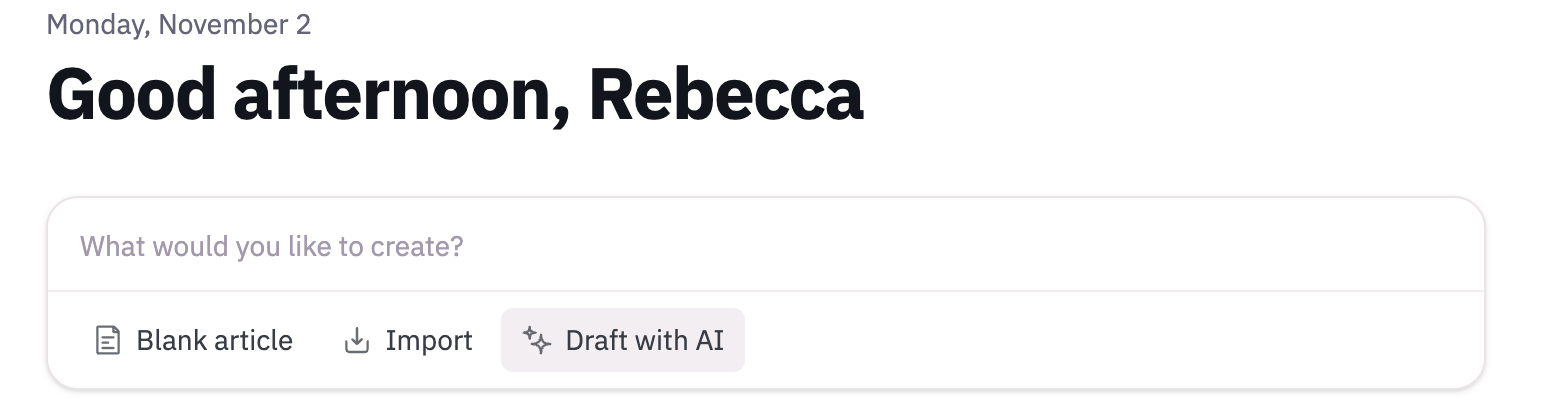
Writing a Draft Article

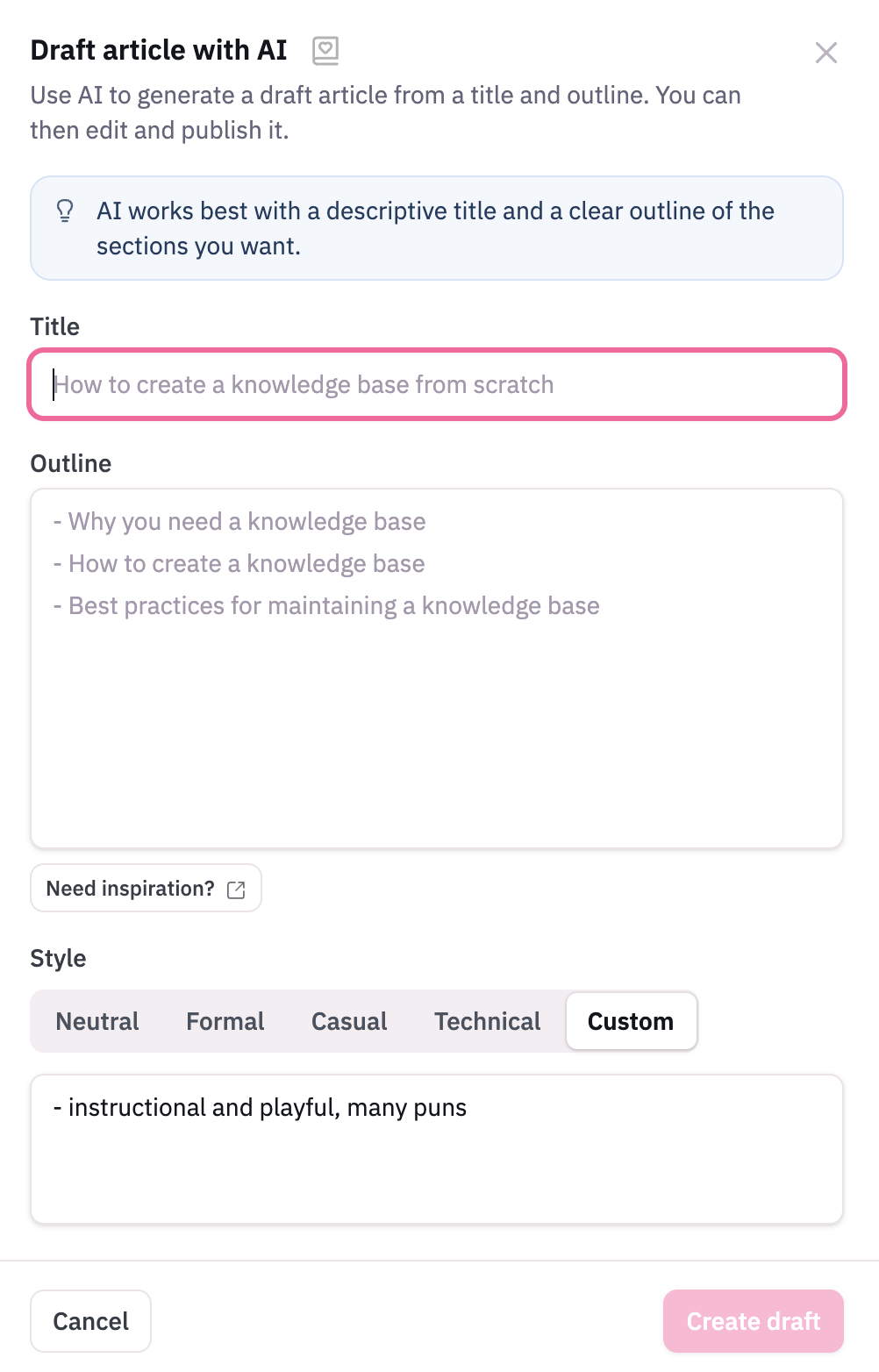
Not sure what to write? We recommend bullet points, or use one of our Templates

Once you're ready, click Create Draft and watch it comes to life!
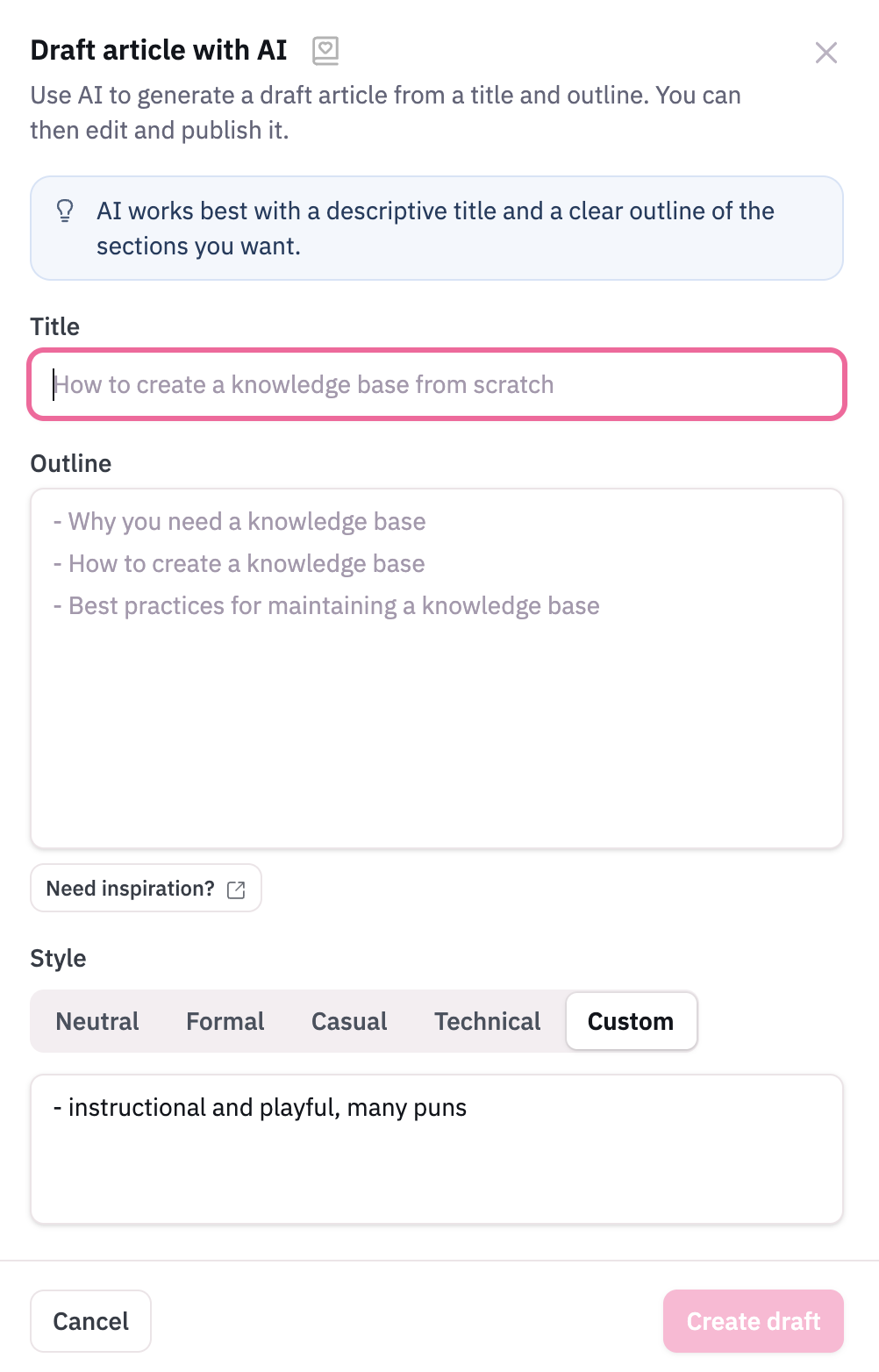
Not sure what to write? We recommend bullet points, or use one of our Templates
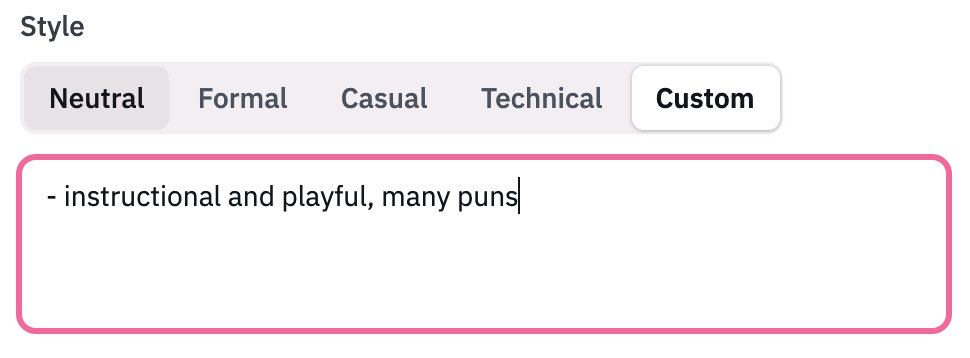

Once you're ready, click Create Draft and watch it comes to life!
Creating a Detailed Outline
Creating an outline for the best draft article is important, since the more context you give, the better the result. Here's a few tips:
- Use bullet points. Split your content into different sections by using dashes, and then use two dashes to indicate a subsection like so:
- Main topic
-- Subtopic - Add specific examples. When mentioning a specific thing you'd like it to write, include at least one example in brackets to give context.
- Mention formatting. HelpDocs AI knows about the formatting options in the text editor, so don't be afraid to ask for something in a code block, table, or Fold.
Defining Your Style
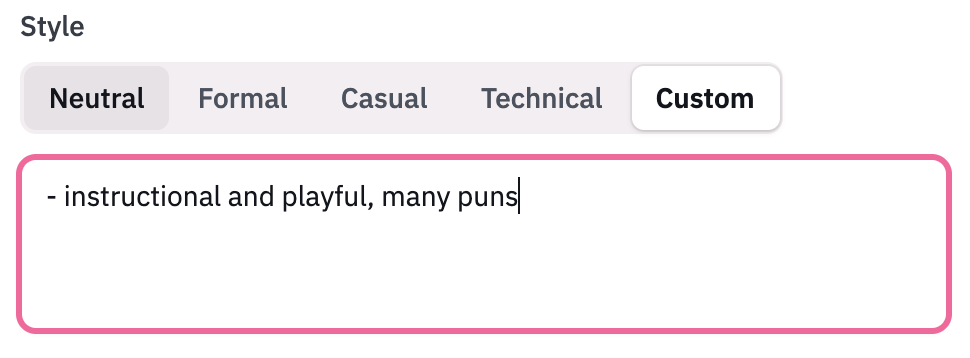
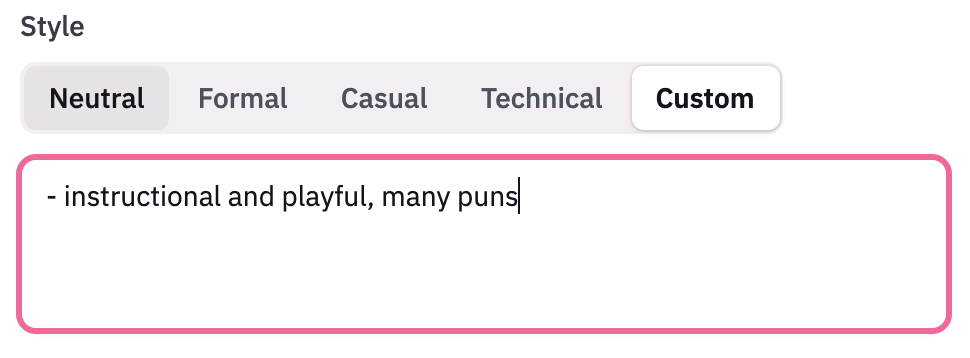
Different brands and even different companies have different styles of writing. To make the generated content as you as possible, choose a style from our list or add a custom one.
Style | Description |
Neutral | Informative and instructional. |
Formal | No puns here. Keeps the tone consistent and writes for learning. |
Casual | Has a little more fun with the tone and voice, but still instructional. |
Technical | Drills down into the nitty-gritty and doesn't veer off-course. |
Custom | Add your own style to make it fit your brand. |