

HelpDocs AI is your new best friend for creating and managing Knowledge Base content! You can customize various AI features and give it context about your company so it really gets what you're all about.
Turning On AI Features
Each AI feature has its own switch, so you can turn on only the ones your team needs.
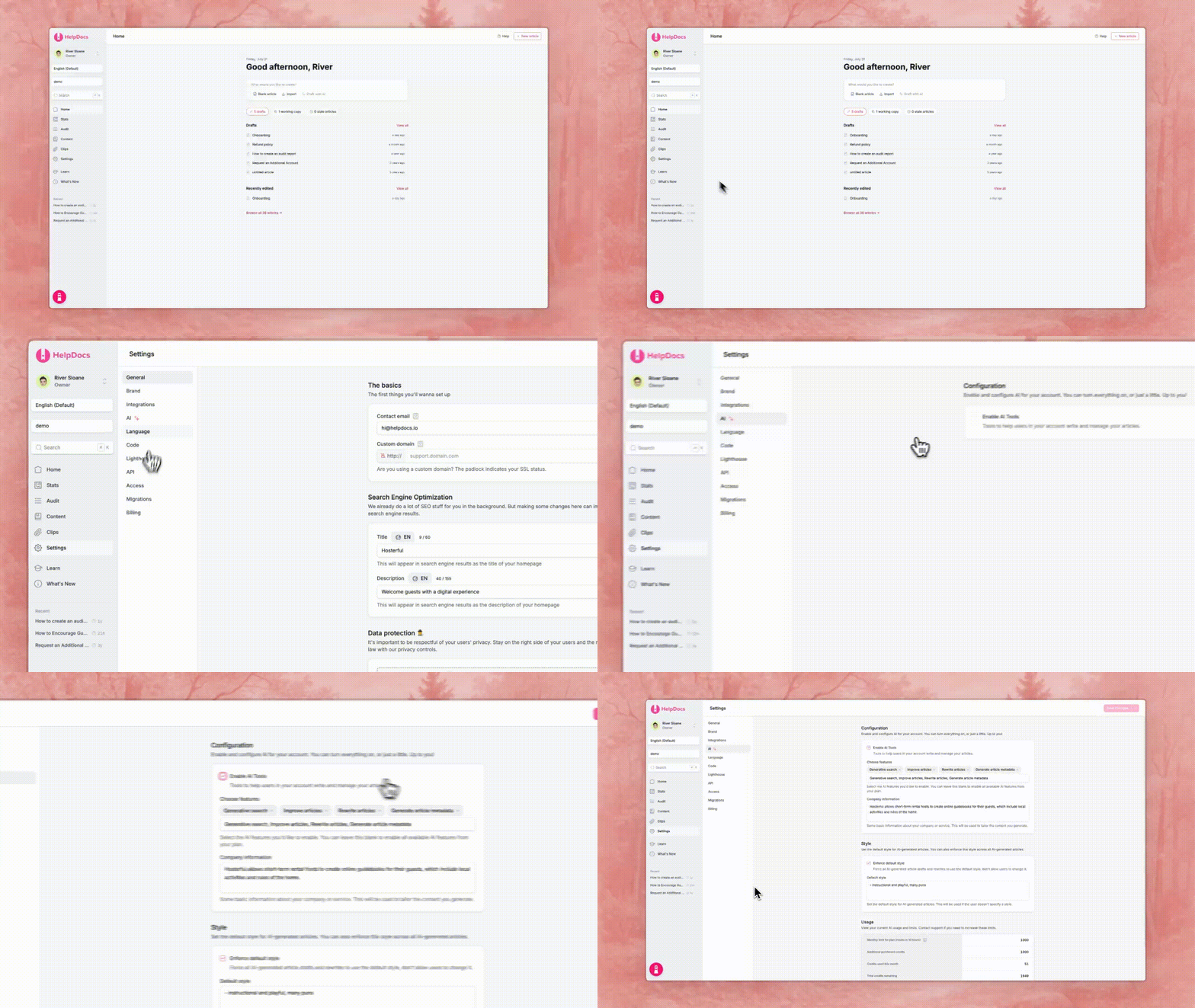
- Head to Settings > AI
- Turn on the switch for each feature you want to use
- Click Save changes in the bar at the bottom of the page

Available AI Features
The features are grouped by who they're for. Each card has a Learn more link if you want the details before you switch it on.
Feature | Description |
For your team | These use AI credits. |
Describe what you need and get a first draft to edit | |
Refresh an existing article and keep the parts you like. It also powers generating diagrams from a description. | |
Get suggestions for making an article clearer | |
Fill in descriptions, tags, and image alt text for you | |
For your readers | |
Readers ask a question and get an answer written from your articles. Uses AI credits. | |
AI visibility | Free on every plan. |
Add .md to any article link to get a clean Markdown copy | |
Publish a list of your articles at /llms.txt for AI tools to find | |
For AI apps | |
Connect Claude, ChatGPT, and other AI apps to your knowledge base over MCP |
Setting Up Company Information
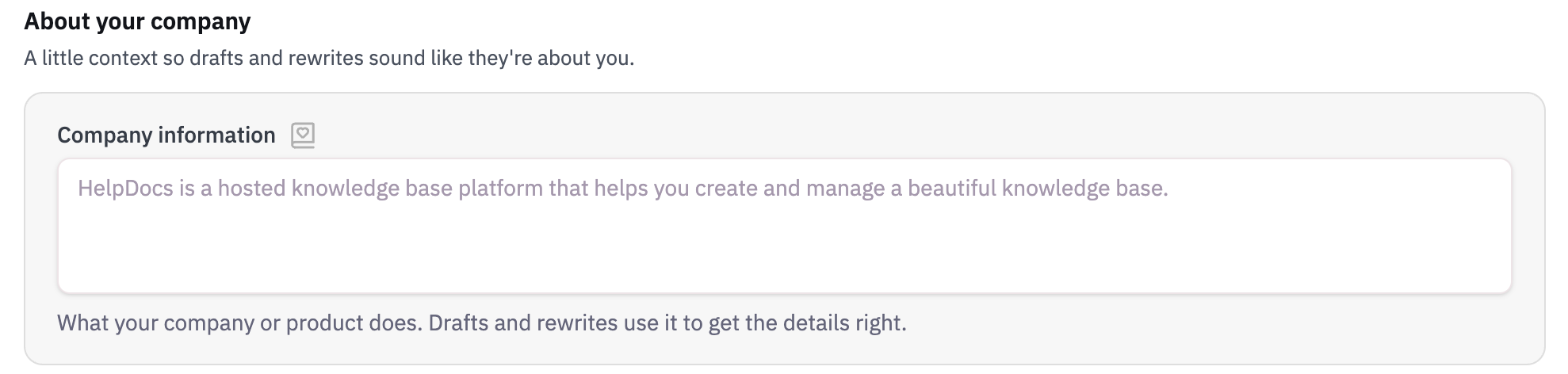
Help HelpDocs AI better understand your business context by adding company information. Drafts and rewrites use it to get the details right.
- Head to Settings > AI
- Scroll to About your company
- Under Company information, enter a clear, concise description of what your company does. For example: 'We provide cloud-based project management software that helps teams collaborate and track progress in real-time.'
- Click Save changes
Configuring AI Style
Your default style helps you maintain a consistent voice and tone across your Knowledge Base content.
By setting up style preferences, you can ensure drafts and rewrites match your brand voice, whether that's professional, casual, or somewhere in between.
- Head to Settings > AI
- Scroll to Style
- Describe how you want drafts and rewrites to sound under Default style. It's used whenever someone doesn't pick a style.
- Click Save changes
Best practices for setting up your style
- Use bullet points to separate different style requirements
- Specify your preferred tone, like casual, informative, or professional
- Include specific writing requirements like company name formatting or terminology preferences
- Add examples to illustrate your preferences
Enforcing Team Style
Want to make sure all content is generated the same way? Make your team use your default style every time:
- Head to Settings > AI
- Scroll to Style
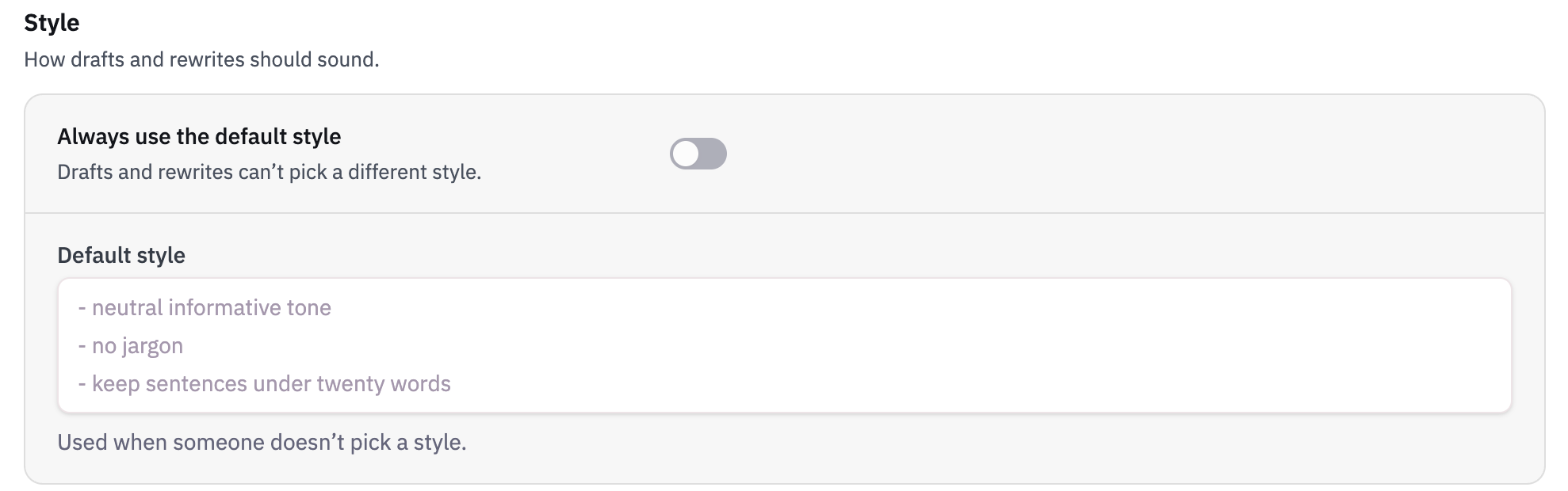
- Turn on Always use the default style
- Click Save changes
With this on, the style picker disappears when drafting or rewriting, and every draft and rewrite uses your default style.