

HelpDocs comes loaded with automatic code blocks with syntax highlighting. There's nothing to set up or configure—it'll automatically highlight your code based on the language you insert.
Code Blocks look different depending on the template you're using
Adding Code Blocks
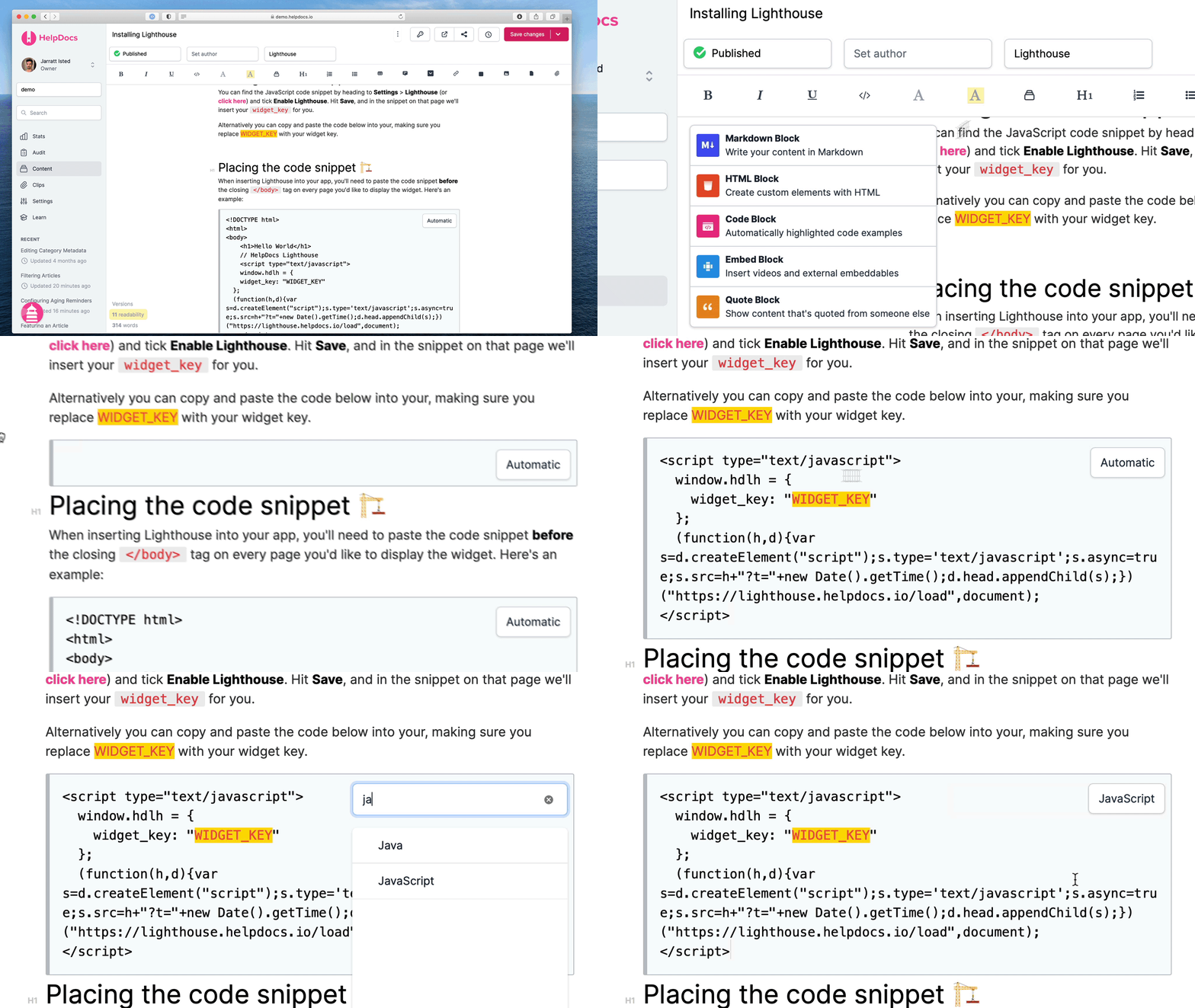
- In the article editor click Blocks
- Select Code Block
- Paste the code into the code block
- Click Automatic to select and search for a language or leave it for us to decide
- Hit Save Changes
Now your code will look beautiful and readable to all those developers out there 😍 Here's an example:
function randomString() {
  var chars = '0123456789abcdefghijklmnopqrstuvwxyzABCDEFGHIJKLMNOPQRSTUVWXYZ',
      length = 32,
      result = '';
  for (var i = length; i > 0; --i) result += chars[Math.floor(Math.random() * chars.length)];
  return result;
}
Code Blocks are only highlighted when your articles are viewed not when they're written. Don't worry when they look plain and boring in the article editor 💅