

HelpDocs AI is your new best friend for creating and managing Knowledge Base content! You can customize various AI features and give it context about your company so it really gets what you're all about.
Enabling HelpDocs AI
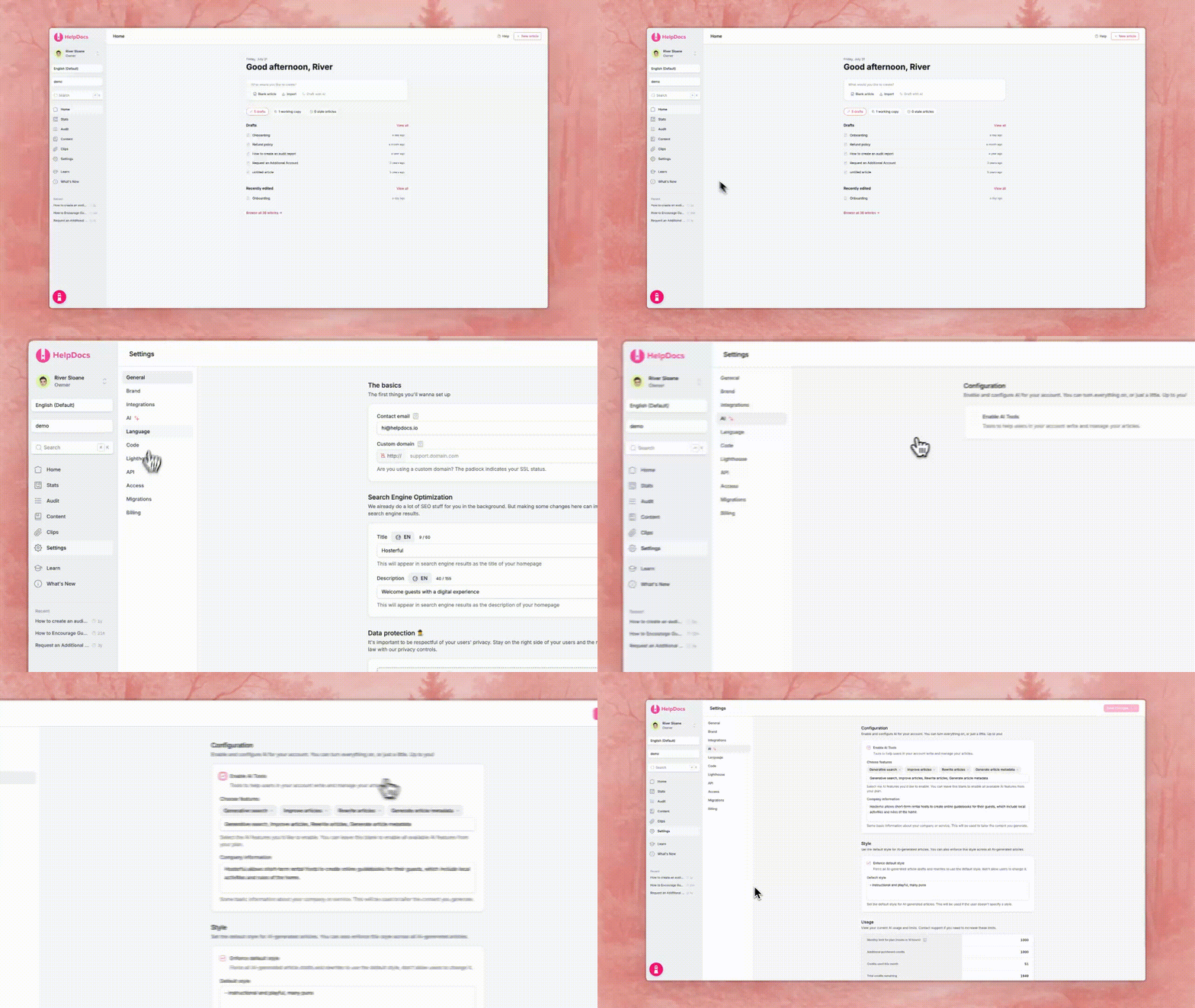
- Head to Settings > AI
- Head to the Configuration section
- Check Enable AI Tools
Customizing AI Features
HelpDocs AI offers several powerful features you can enable or disable based on your team's needs:
Feature | Description |
Creates initial article drafts based on your requirements | |
Helps refine and improve existing content | |
Automatically suggests metadata like descriptions, short versions, tags, and alt descriptions for better organization | |
Enables Ask AI so users get a short summary based on your content. | |
Enables improvement suggestions button and panel on your articles. |
Setting Up Company Information
Help HelpDocs AI better understand your business context by adding company information. This information helps HelpDocs AI generate more relevant and accurate content for your Knowledge Base.
- Head to Settings > AI
- Head to Configuration
- Locate the Company Information section
- Enter a clear, concise description of what your company does. For example: 'We provide cloud-based project management software that helps teams collaborate and track progress in real-time.'
Configuring AI Style
AI Style helps you maintain consistent voice and tone across your Knowledge Base content.
By setting up style preferences, you can ensure all AI-generated content matches your brand voice—whether that's professional, casual, or somewhere in between.
- Head to Settings > AI
- Head to the Style section
Best practices for setting up your style
- Use bullet points to separate different style requirements
- Specify your preferred tone, like casual, informative or professional
- Include specific writing requirements like company name formatting or terminology preferences
- Add examples to illustrate your preferences
Enforcing Team Style
Want to make sure all content is generated the same? Make sure your team uses consistent style settings by enforcing your AI style:
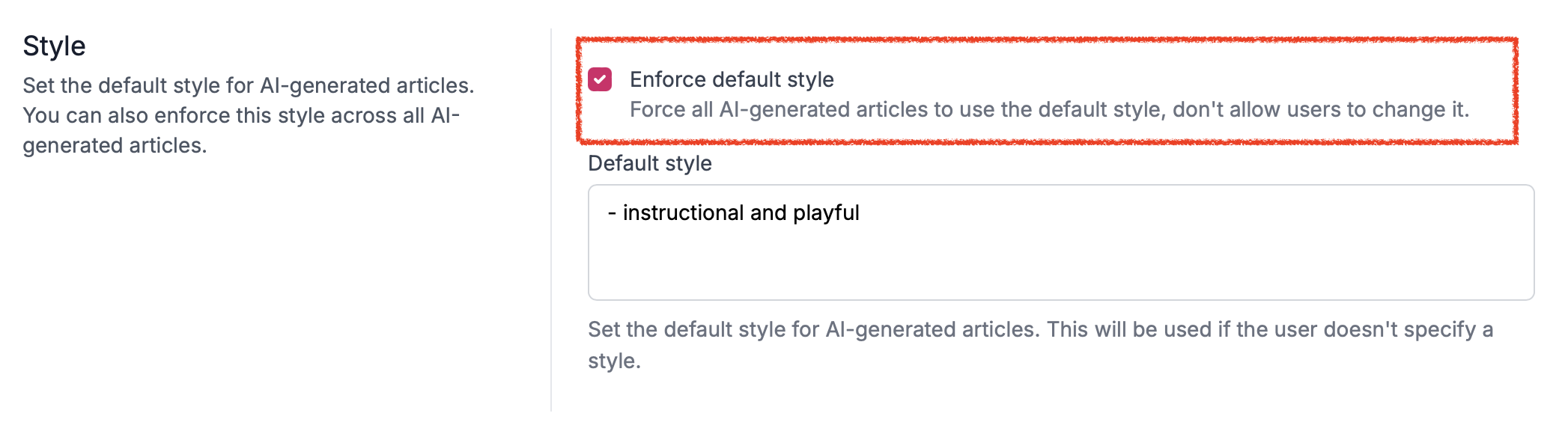
- Head to Settings > AI
- Head to Style
- Check Enforce default style