

The Steps block is for walkthroughs where every step needs its own picture. No more alternating paragraphs and screenshots, hoping the numbering survives your next edit. Instead you get a proper numbered structure with a dedicated image slot on each step.
Adding a Steps Block
Type / anywhere in an article and pick Steps. /steps, /walkthrough, and /tutorial all find it. It looks like this (Stacked version):
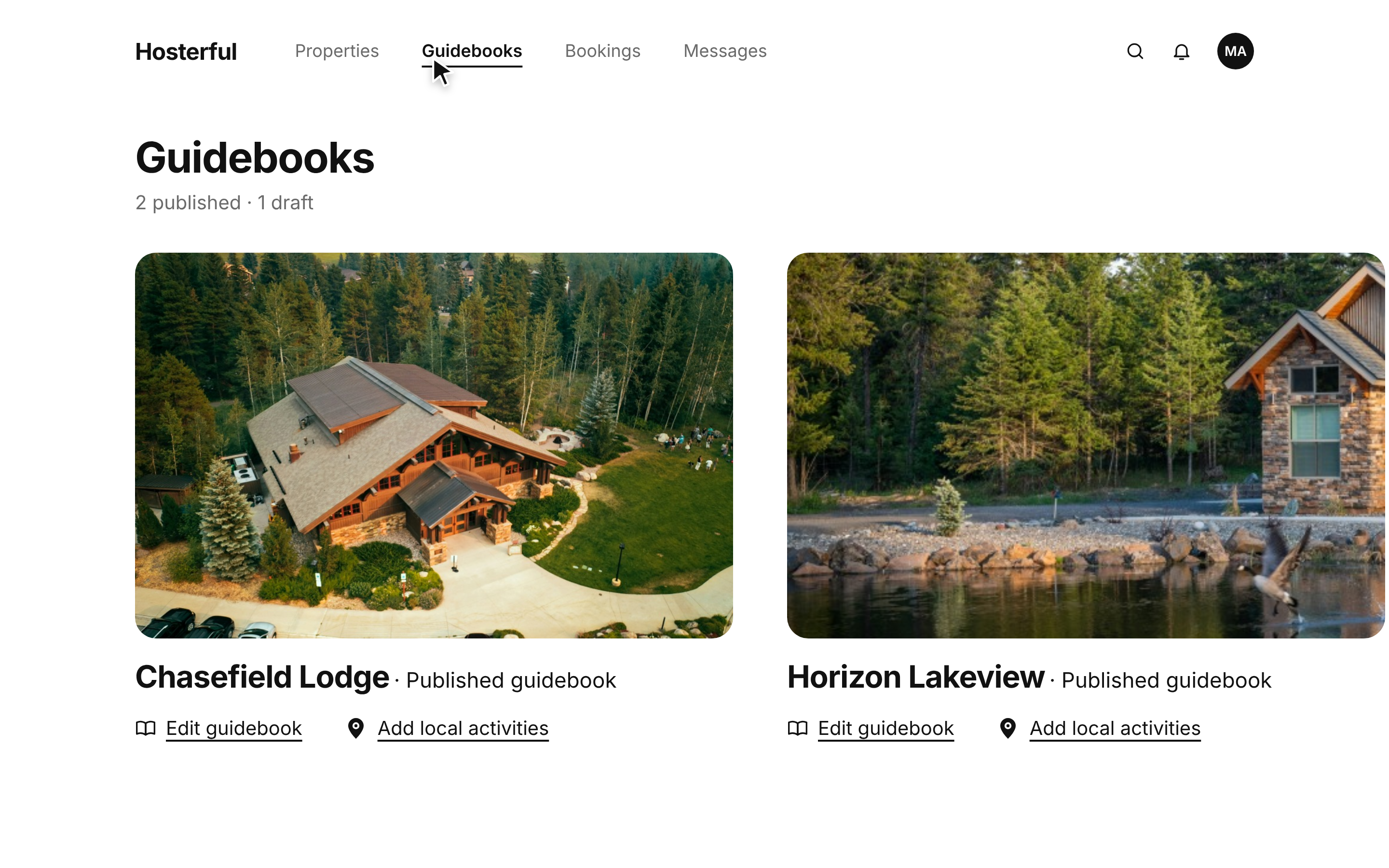
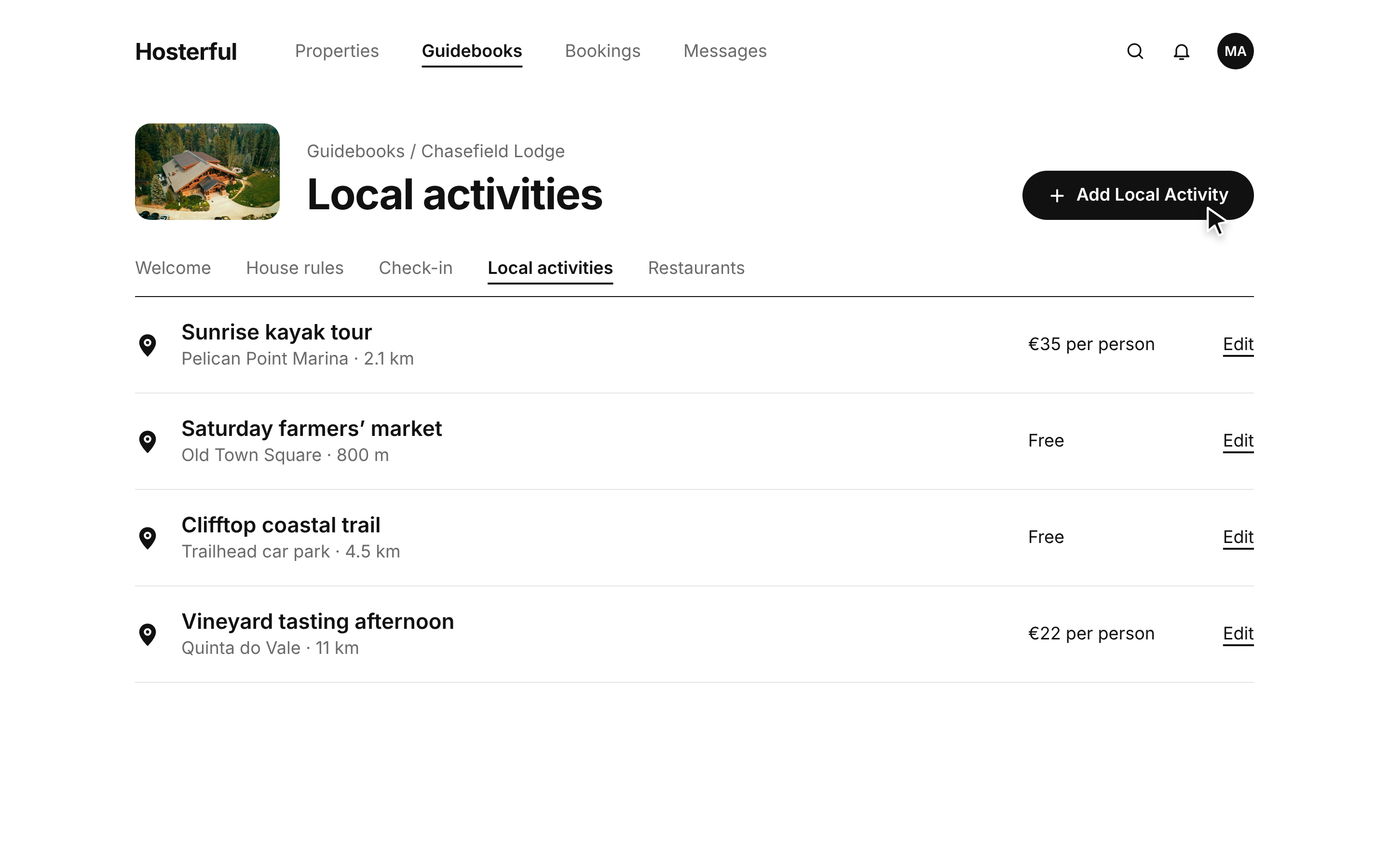
You can have up to 5 local activities per property on a Standard plan and up to 50 local activities per property with the Super host plan.
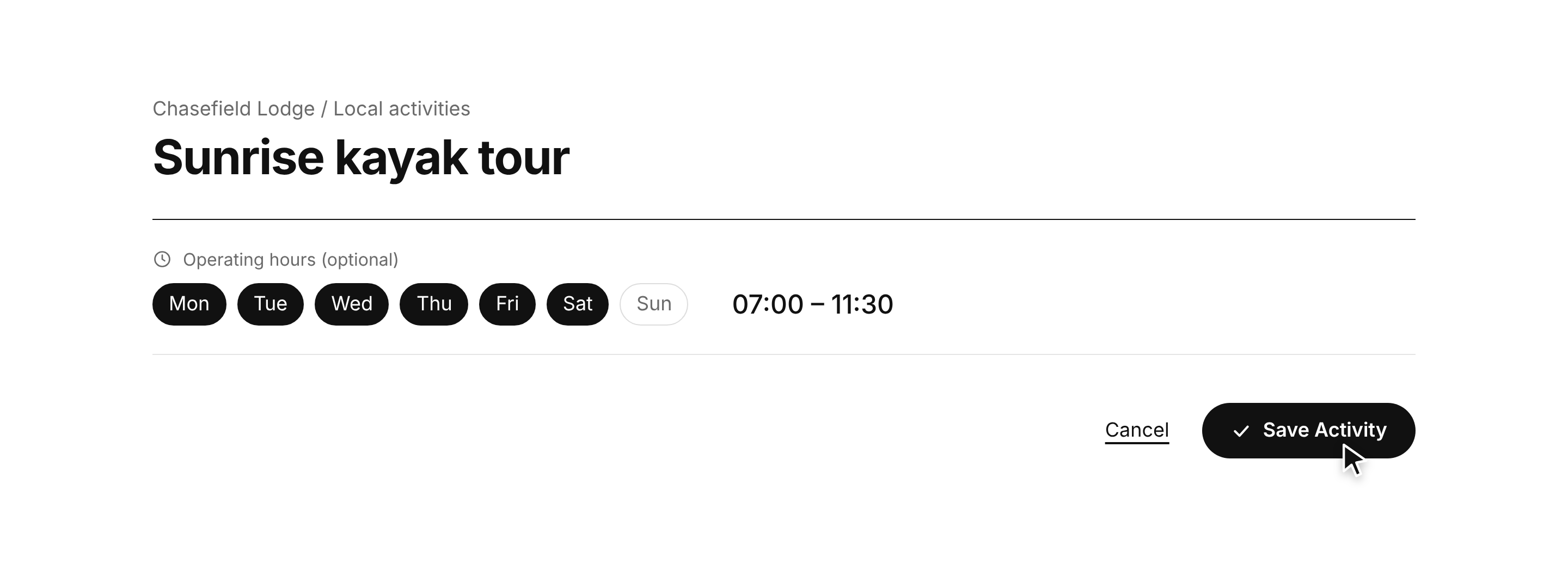
Fill in the details like Activity name, where it's located, how much it costs, and when it's available.
What's in a Step
Each step has three parts, and only the title is required:
Part | What It's For |
Screenshot | One image per step, optional. An empty slot shows a placeholder you click to upload |
Title | The instruction itself, on a single line. Keep it to the action: "Open Settings", not a paragraph |
Description | Optional detail underneath, for caveats or context the title can't carry |
The numbers look after themselves. Each step's number comes from its position, so reordering, duplicating, or deleting a step renumbers the whole list automatically. You never edit a number by hand.
Building a Steps Walkthrough
- Write the first step's title
- Click the image placeholder to add a screenshot, if that step needs one
- Add a description underneath if the title alone isn't enough
- Click + Add step at the top of the block and repeat
Hover any step to reveal its controls:
Control | What It Does |
Drag handle | Reorders the step. Everything renumbers to match |
Duplicate step | Copies the step, screenshot included |
Delete step | Removes it and closes the gap in the numbering |
Stacked or Carousel
At the top of the block is a Publish layout dropdown with two choices. This is the setting people miss, because of what it does not change:
Layout | How It Publishes |
Stacked | Every step shown one after another down the page. Best for reference, printing, and anything a reader might skim or search within |
Carousel | One step at a time, with the reader clicking through. Best for a long walkthrough where showing all twelve screenshots at once is overwhelming |
The example at the top of this article is a Stacked version. Here's an example of the Carousel version. Exactly the same content, just a different layout:
You can have up to 5 local activities per property on a Standard plan and up to 50 local activities per property with the Super host plan.
Fill in the details like Activity name, where it's located, how much it costs, and when it's available.
Keyboard Shortcuts
The fields inside a step have their own navigation:
Keys | What It Does |
| Moves between a step's title and description, then on to the next step. At either end you step out of the block |
| Drops into that step's description |
| Selects just the title or description you're in, not the whole article |
Maximum Number of Steps
A block holds up to 20 steps. Once you hit that limit, + Add step stops working until you remove a step. If a walkthrough is running longer than that, it is usually two articles wearing a trenchcoat, and splitting it will help the reader more than squeezing it in will.
For the rest of the toolbox see Understanding Block Types, or Shortcuts in the Block Editor for the full keyboard reference.