

Translate your template's words so your customers have the full experience of getting support in their own language.
See more results, Table of Contents, etc). These are set per language under Settings > Languages > Help center text.
Filling in Translated Template Words
When you add a new secondary language we have a translation for, we'll fill these words in for you if we have them to make it easier for you.
A notice under Your languages tells you which languages were filled in. They save with the rest of your changes when you click Save changes, and you can edit them under Help center text afterwards.
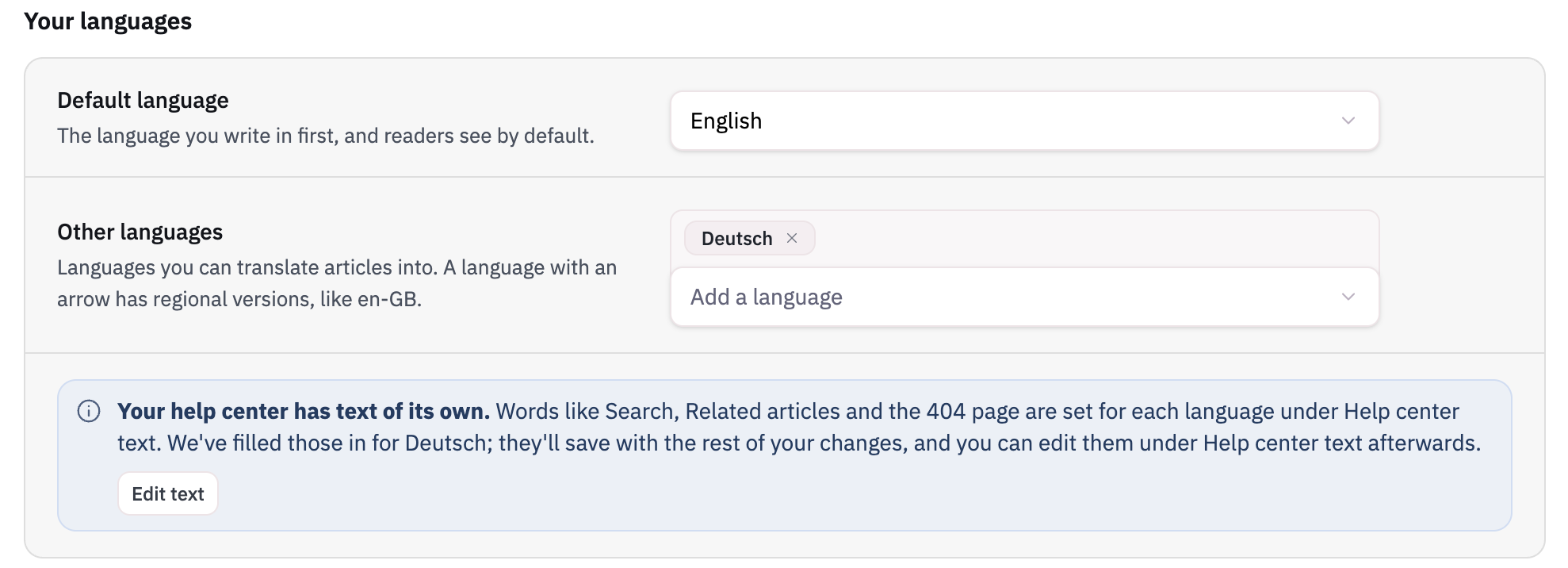
Language support for multilingual default template words
We have translations for Danish, Dutch, French, German, Italian, Japanese, Norwegian (Bokmål), Polish, Portuguese, Spanish, and Swedish. Any other language stays in English until you translate its words yourself, using the steps below.
Translating the Words Yourself
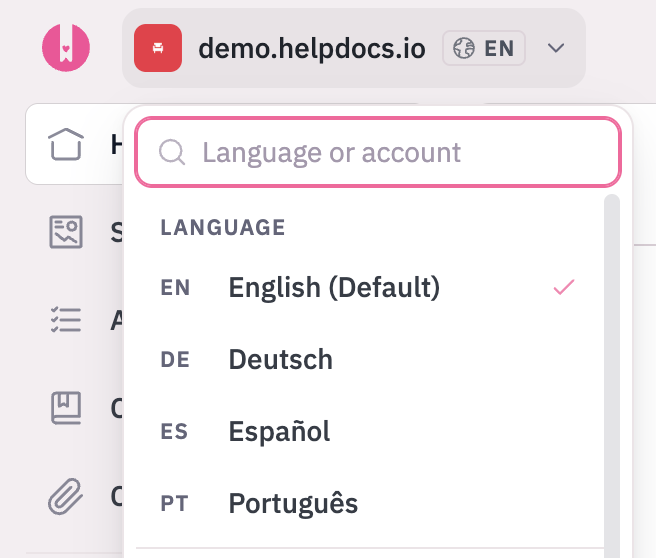
- Pick the language you want to edit from the top left-hand menu
- Head to Settings > Languages > Help center text
- Under Find text, you'll see which language you're editing, for example "This is for your DE version."
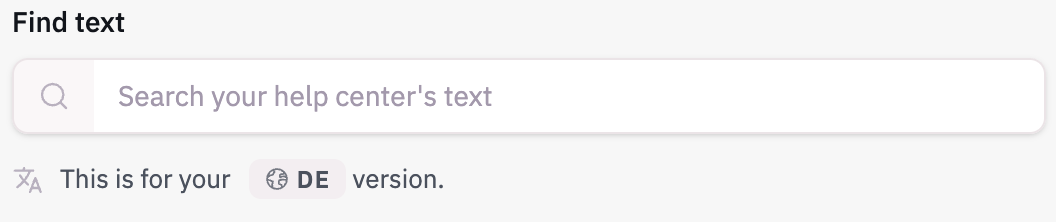
- Type your translation in the box beside the English phrase. Leave a box empty to keep the English wording for that phrase.

- Click Save changes.
Repeat for each language. Your default language works the same way, so you can change the English wording too. See Changing the Language in Common Phrases.
Words in a Custom Template
If you use a custom HTML template, you can add words of your own under Your own text at the bottom of Help center text. Show them in your template with {{i18n "custom_1"}}, {{i18n "custom_2"}}, and so on, then translate each one per language the same way as above. Reset to defaults leaves these alone.
Why is some text still in English?
- The language isn't one we have a translation for. Translate its words yourself under Help center text.
- You're editing the wrong language. Check the language under Find text matches the one you're looking at, and switch it from the menu at the top left if not.
- It's your brand name, navigation, or banner. Translate those under Brand text.
- It's an article. Article content is translated separately. See Translating Your Docs.
- You haven't saved. Changes on these pages only apply once you click Save changes.
Related Reading
For regional variants such as UK English or Canadian French, and for right-to-left languages such as Arabic, see Right-to-left and regional languages.
Multilingual content is optimized for search automatically. To learn how this works, or to report a search problem in another language, see Multilingual search.
For the language limits on each plan, see Plan Language Limits.