

Tasks are a list of things in your articles that need a look. They all live on Home, so you always know what to do next. No more guessing what needs a look 🎯
You can filter the list to find what matters most. Then you can work through a batch of tasks in one go.
Understand Task Groups
Tasks are sorted into four groups:
Group | What it means |
Waiting on you | Tasks assigned to you that need your action. |
Ready to publish | Finished edits that are ready to go live. |
Out of date | Articles someone marked as out of date (see Understanding Stale), or articles due for a check. |
Coming up | Tasks that aren't urgent yet. |
Head to Home in the sidebar. The number beside it shows how many tasks are still waiting for you.
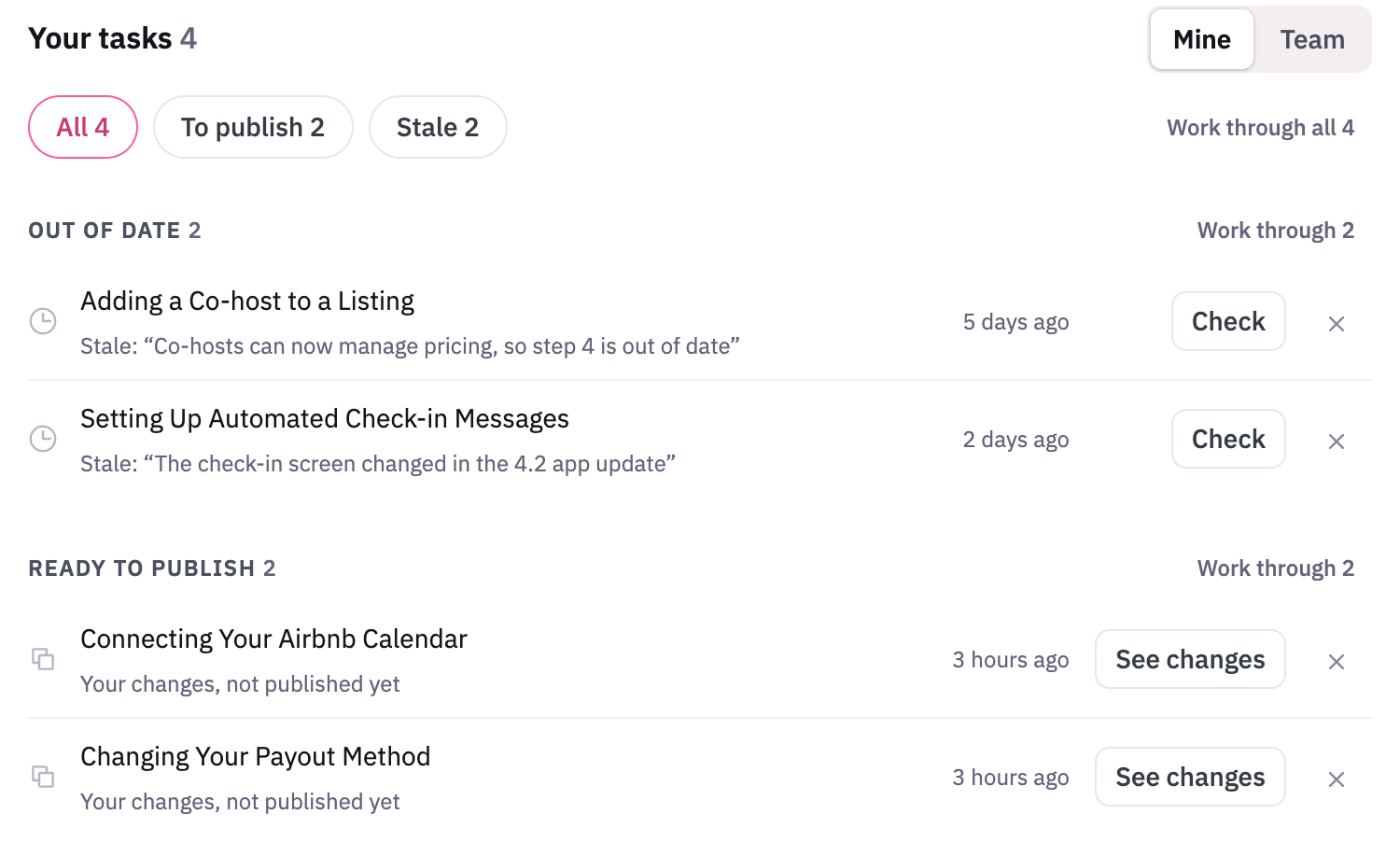
What the row buttons do
Each task row has one button. The button matches the task.
Button | What it does |
|---|---|
Review | Opens the review, so you can look over the changes. |
See changes | Shows what has changed in the article, in the preview panel. |
Review fixes | Appears on an out-of-date article that has fixes waiting. The row says "N fixes ready". Click it to see those fixes in the preview panel next to the list. |
Check | Opens a small box for out-of-date articles. The box shows who marked it and why.
|
Who owns a task?
- If a task has an assignee, that person owns it
- If nobody is assigned, the task belongs to the person who wrote the first version in that language
- If that's unknown too, the task belongs to the article's author
Working through several tasks at once (bulk actions)
Hover over a row's icon and it turns into a tick box. Once you tick one row, every row shows a tick box too.
A bar then appears with Work through, Reassign and Dismiss. These buttons only act on the rows you ticked. You can also start a batch from these places:
Where you click | What it works through |
|---|---|
Work through N on a group heading | Every task in that group. |
Work through all N beside the filter buttons | Every task under the filter you picked. This skips Coming up. |
Work through on the Coming up heading | Only the Coming up tasks. |
Tasks open one at a time in a large panel. One batch can mix different kinds of task. At the top, you'll see a progress bar, a count of the tasks you've finished, and Previous and Next buttons.
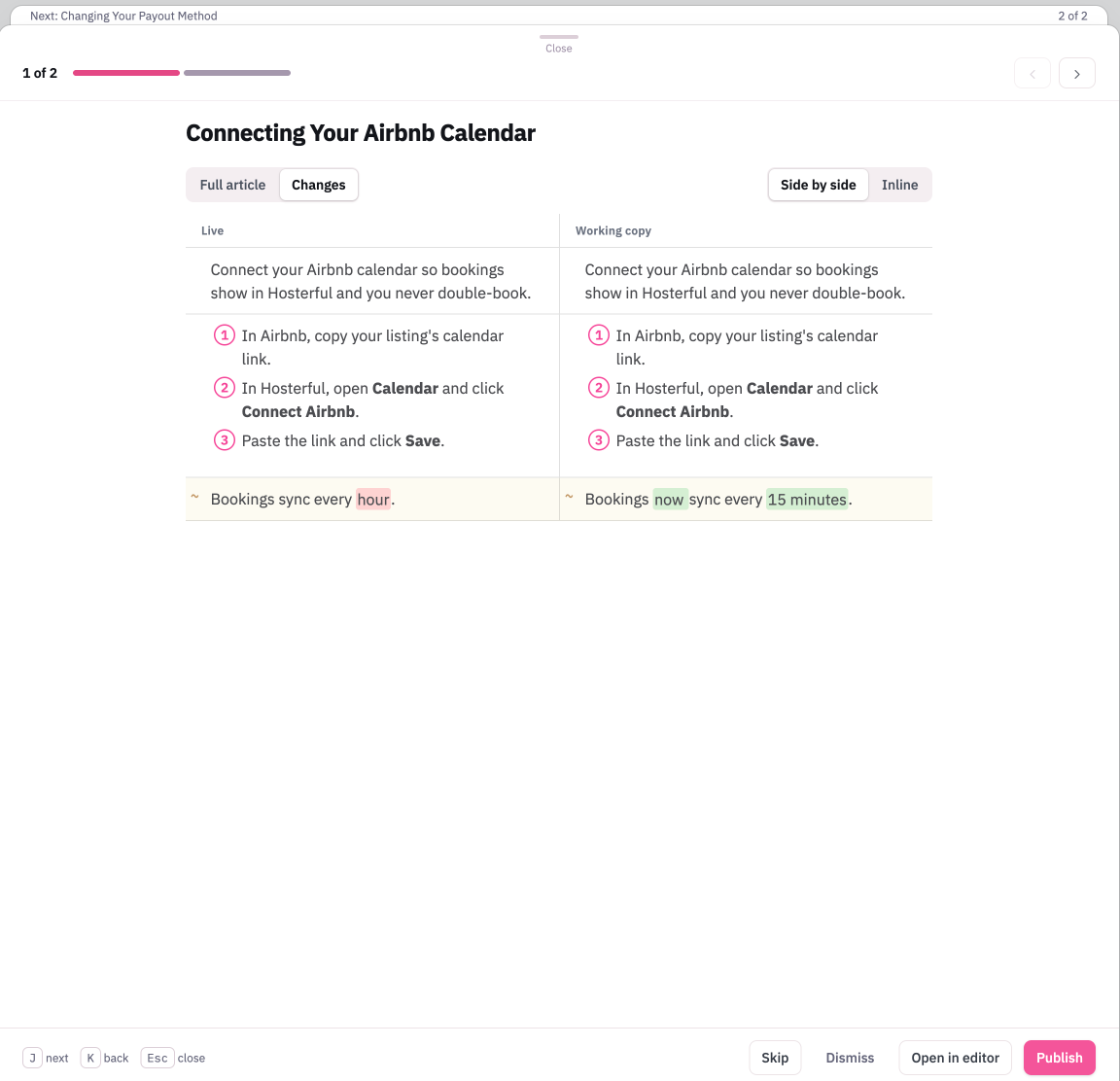
You can move through the panel with your keyboard
Jgoes to the next task.Kgoes back to the previous task.Esccloses the panel.
What each card shows
Card | What you'll see and do |
|---|---|
Ready to publish | The changes, and a Publish button. Switch between Side by side (old and new versions next to each other) and Inline (changes shown in one column). On screens narrower than 768px, you'll always see Inline. |
A review asked of you | The changes and the conversation about them. Choose Approve or Ask for changes. |
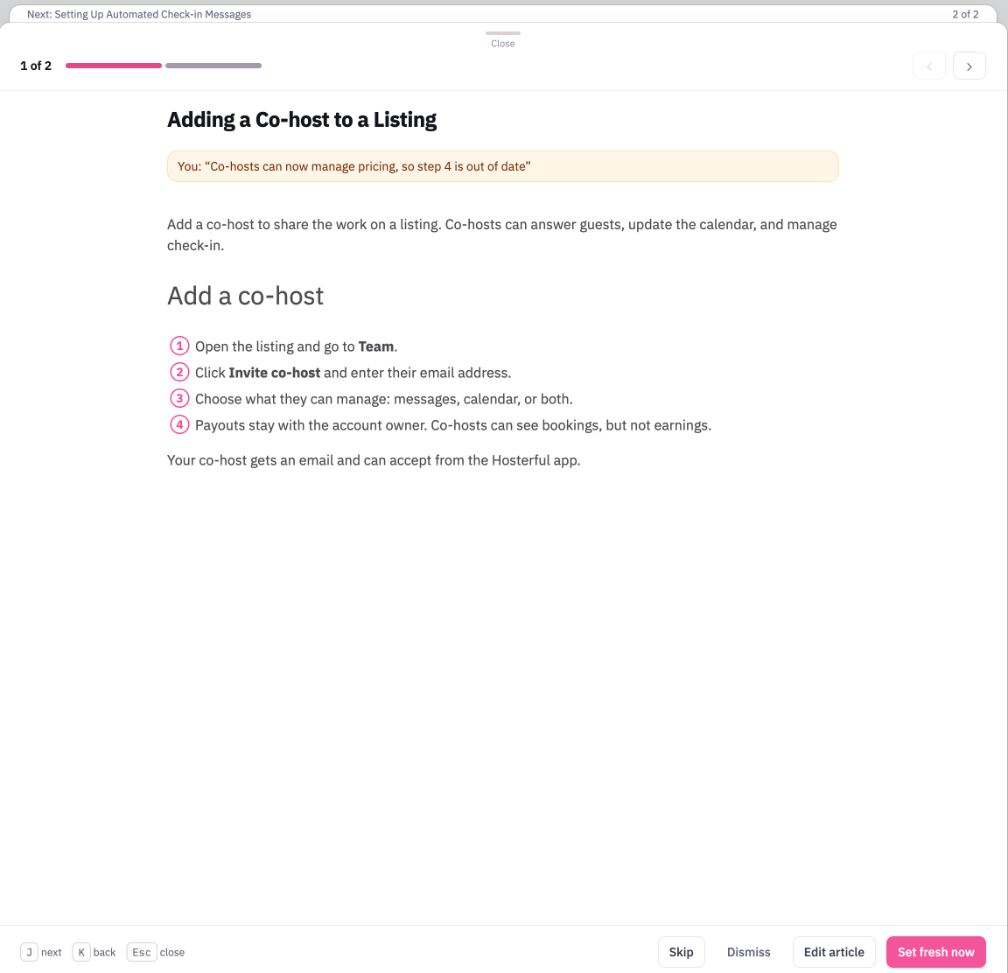
Out of date | The article, with Still accurate or Set fresh now. If fixes are waiting, Review fixes appears first and opens them in the preview panel. |
When your changes are saved
When you press a button like Publish, Approve or Dismiss, the panel moves on straight away. A message appears with an Undo option.
The change is saved once that message goes away. To keep the message on screen, hover over it.
If you close the panel, switch language or hide the browser tab, any changes still waiting are saved.
When you finish, the end screen lists what happened to each task. For example, it might say "You skipped 3 and undid 1." Click Go back to the skipped ones to return to any you passed over.
Marking an article fresh as you publish
When you publish an out-of-date article, you can tick Also mark fresh. This marks the article as up to date, but only after the publish works. If marking fails, the article is still published, and you'll see a normal publish message.
This option doesn't appear when the article went out of date because its review date passed. In that case, choose Still accurate instead.
Dismissing tasks
Dismissing hides a task. You can dismiss from its row, from several ticked rows at once, or from inside the panel. Undo is always available.
Dismissing only hides the task for you. It never hides it for your team.
A dismissed task comes back when something new happens to it, such as:
- Someone else replies
- The article goes out of date again
- A new review is requested
- A new working copy is saved
Team view and assigning
Editors and above (see Managing Users) also see a Team view. It sorts tasks into No owner, Out of date, Waiting to publish, and Reviews waiting.
Each row shows who owns the task. This view only includes articles you can see.
Click Assign or Reassign on one row, or on all the rows you ticked. You'll pick a reviewer the same way you do for reviews. Assigning a task never changes the article's author.
On plans with approvals, editors can also change the reviewers on articles they can see and edit.