

Every article ends with three faces so readers can say whether it helped.
Written feedback adds a box underneath, so they can tell you why in their own words. You find out what's missing, what's out of date, and what confused people.
Turning on written feedback
- Head to Settings > General
- In the Feedback section, turn on Reader feedback
- Pick an option for Ask for an email address (see below)
- Leave AI moderation on, unless you have a reason to read every message unchecked
- Save your changes
You need written feedback on your plan, and your data processing agreement signed or opted out of in Settings > Privacy & cookies. Until then, the Reader feedback switch is greyed out and says what's missing.
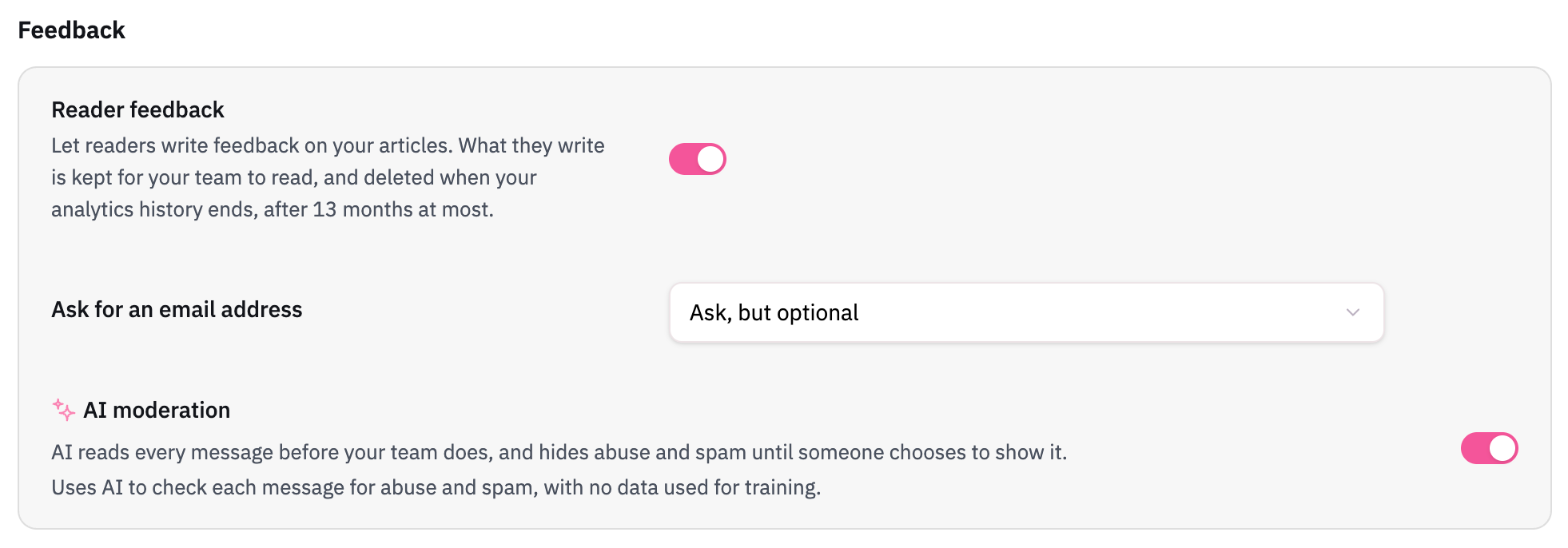
Feedback settings
Setting | What it does |
|---|---|
Reader feedback | Shows the written feedback box after a reader picks a face. Turn it off and the faces still work on their own. |
Ask for an email address | Don’t ask shows the message box only. Ask, but optional adds name and email fields readers can skip. Require makes the email address compulsory. Readers are told it's only so you can follow up. |
AI moderation | Checks each message before your team reads it, and holds back abuse, spam, and personal details. See Moderating Written Feedback. |
The email and AI moderation settings only show while Reader feedback is on. Turn it off and back on, and they come back as you left them.
With AI moderation off, abuse and spam show in Insights until someone hides it by hand. People who only see reviewed feedback won't see anything until someone approves it.
Reading feedback
Your team reads written feedback in Insights > Feedback. Filter the list with the pills at the top:
Filter | What it shows |
|---|---|
All | Everything you can see. |
Needs you | Messages marked Needs a person, such as a possible threat. Only shown when there's something in it. |
Waiting | Messages nobody has reviewed yet. |
Hidden | Messages held back by AI moderation or hidden by a person. They're folded away, never lost. |
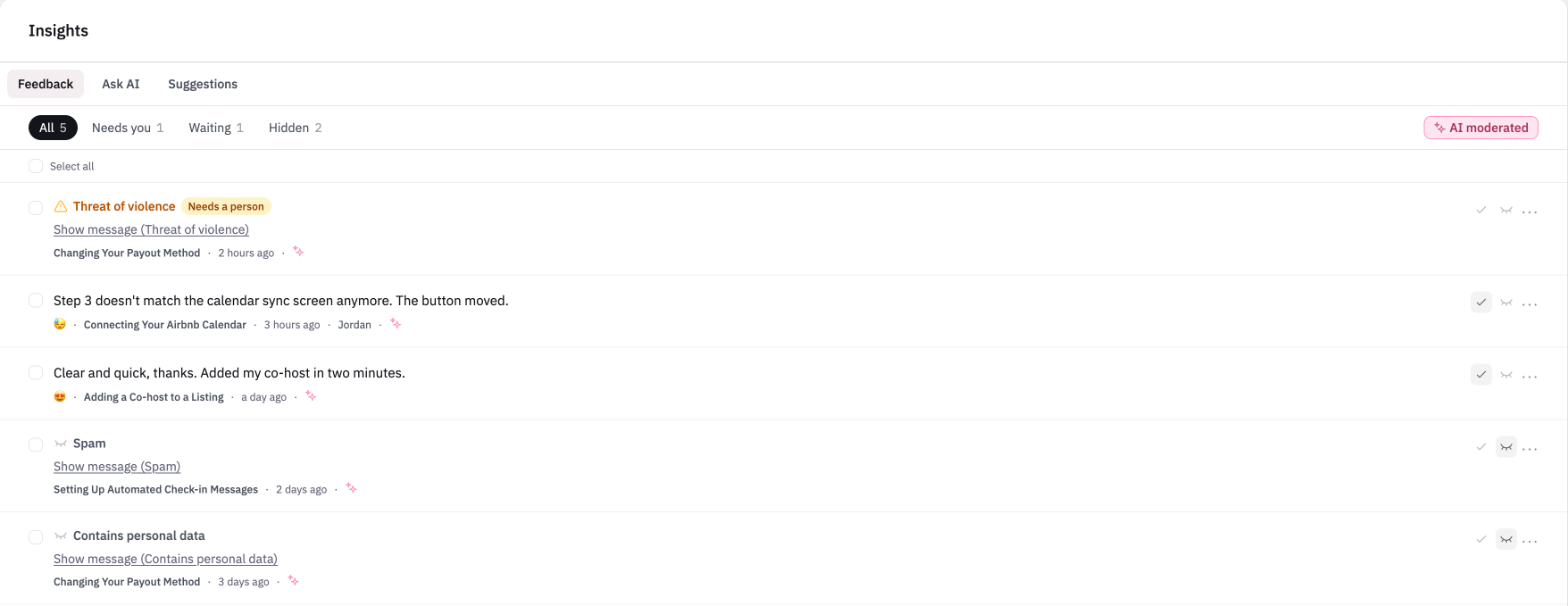
Each message has two buttons: the tick shows it to the team, and the eye hides it as abuse or spam. A person's choice always replaces the AI's. The ⋯ menu also has Reject, Put back in the queue, and Delete.
Teammates who can view all feedback see every message. Everyone else with access to Insights sees feedback once it has been approved.
Limits and how long feedback is kept
Plan | Written messages a month |
|---|---|
Sprout | 100 |
Bloom | 1,000 |
Harvest | 10,000 |
Enterprise | Set in your agreement |
Once you reach your limit, the box stops showing until next month. Readers can still pick a face, and those ratings still count.
Messages are kept for your team to read, and deleted when your analytics history ends, after 13 months at most.
Ratings feed your Happiness Score, so you can see how readers feel at a glance, then read the written feedback to find out why.