
Our latest built-in templates (V5 and V6) come with Template Options. You can fine-tune how your Knowledge Base looks and what it shows without touching any code. No developer needed 🎉
The V6 templates (Startup, Docs, and Ask) have the most options, grouped by the part of your Knowledge Base they change. The V5 templates have four.
How to Access Template Options
- Head to Settings > Customize
- In the Design panel, find the Brand section
- Next to Template Options, underneath the template selector, click Change
- If you just picked a new template, wait until the change has saved.
- If you see a Save button rather than Publish, hit it first.
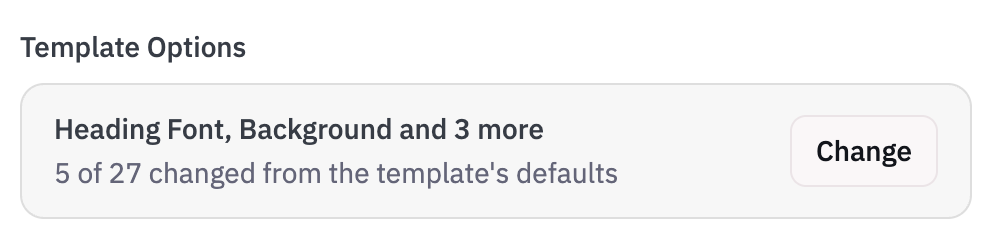
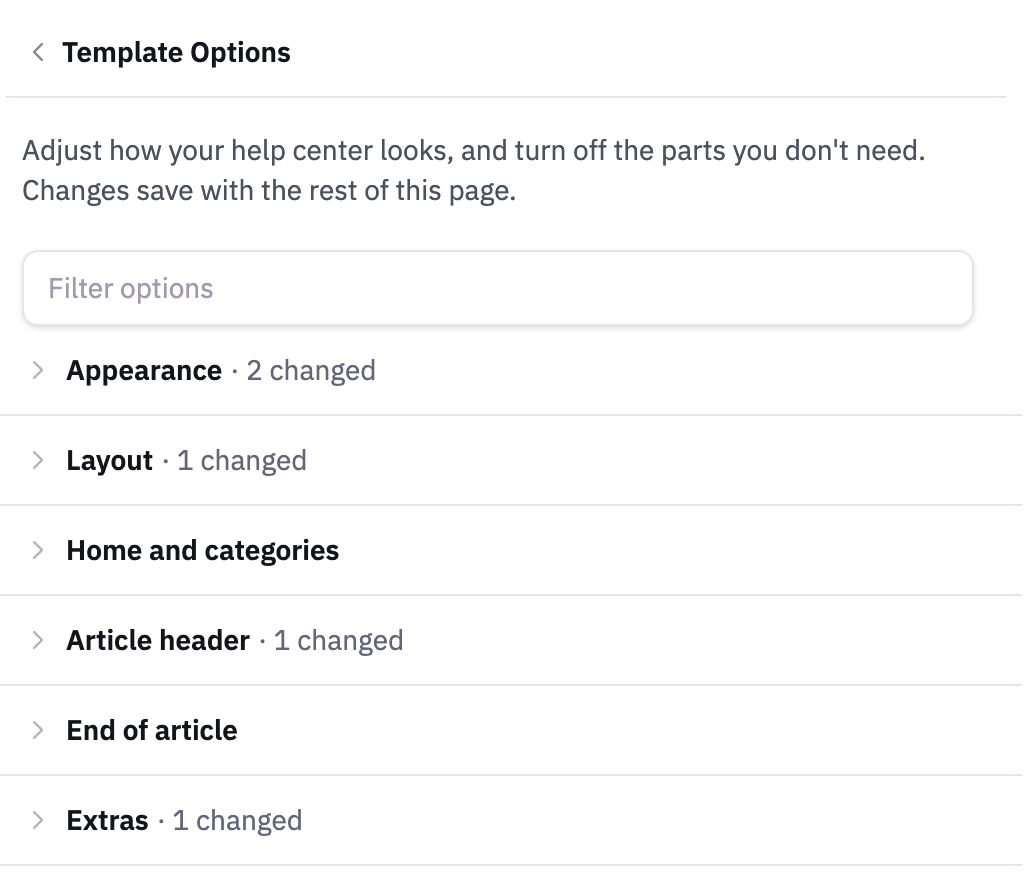
- Open a section and set any of the options (detailed below), then click Done
- Hit Publish (or Save, if that's the button you see)
V6 Template Options
On V6 templates each section folds open and closed, and shows how many of its options you've changed.
Type | Description | Example |
Heading Font | The typeface for titles and headings. Body text stays in IBM Plex Sans. Choose Sans serif (IBM Plex Sans), Serif (IBM Plex Serif), or System font. | 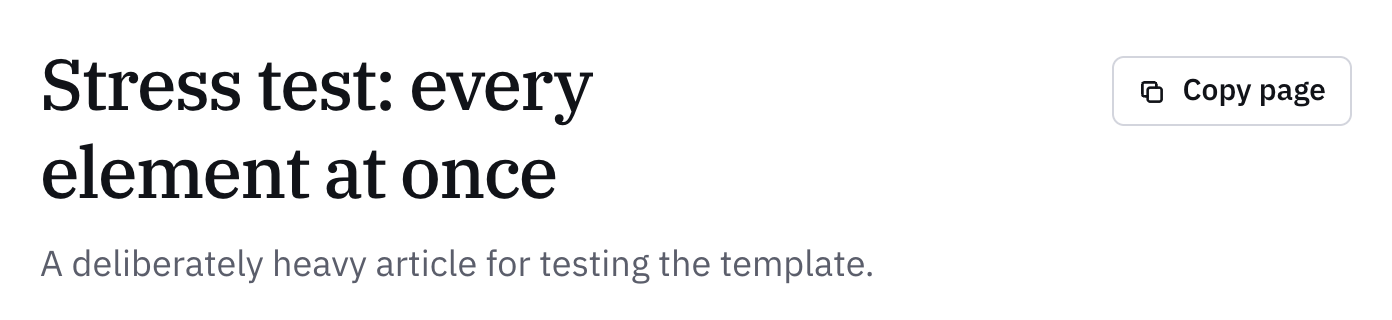 |
Corners | How rounded cards, buttons, the search box, and article boxes like callouts, tables, and code blocks are: Sharp, Soft, or Round. Ask starts on Round; the others start on Soft. | 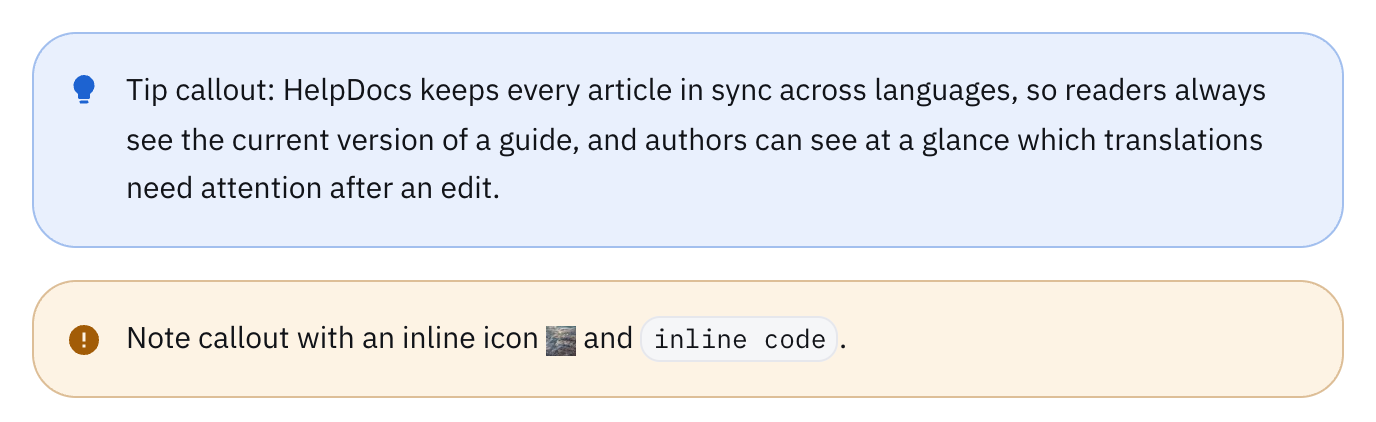 |
Background | The colour of the page and its panels in light mode: White, Warm, or Cool. Dark mode is unchanged. | 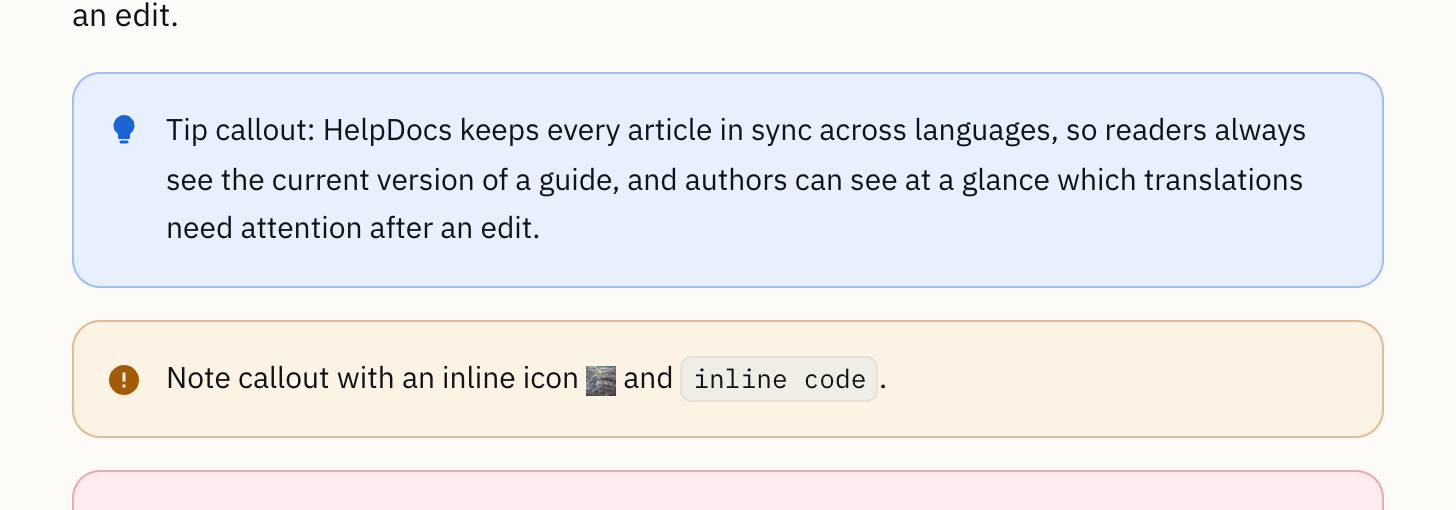 |
Spacing | Compact fits more on screen by tightening the space between sections and inside cards. Comfortable is the default. | Compact suits reference-heavy Knowledge Bases where readers scan a lot. |
Disable Dark Mode | Turns off the template's dark mode, so your Knowledge Base always shows in light mode. Dark mode is unchanged. | Readers no longer see the light/dark switch. |
Type | Description | Example |
Full-Width Articles | Lets article text fill the column instead of holding it to a comfortable reading width. | Useful for reference docs that are mostly wide tables. |
Sidebar Navigation | Lists your categories down the left of every page, with the home page's topics beside them. Startup only. | A persistent category menu, like Docs has. |
Search Banner | The background behind the search box at the top of the home page: Gradient, Solid, or None. Startup only. | None gives a plain, minimal home page. |
Home Page Style | Cards shows a card for each top-level category. Directory lists every category with a few of its articles, so the whole Knowledge Base is one click away. Startup only. | Directory works well for larger Knowledge Bases. |
Type | Description | Example |
Hide Popular Articles | Hides the most-read articles list on the home page. | The home page shows only your categories. |
Hide Category Descriptions | Shows only titles and icons on category cards. | A tidier grid when your descriptions are long. |
Hide Category Descriptions > Home Page Articles | Choose whether to show Popular Articles or Featured Articles. | If you choose Featured Articles, you can select 3 articles to feature. |
Hide Subcategory Links | Stops listing subcategories on their parent's card in category listings. | Cards show the top-level category only. |
Hide Article Counts | Hides the article count (such as "12 articles") on category cards. | Cards drop the count line. |
Type | Description | Example |
Hide Breadcrumbs | Hides the trail above the title on article and category pages. | The page starts with the title. |
Hide Article Descriptions | Hides the short summary shown under the title on article pages. | Only the title shows above the body. |
Disable Authorship | Hides the author across your Knowledge Base. See Disabling Authorship and Updated Times. | Articles show no author name or photo. |
Hide Reading Time | Hides the estimated reading time (such as "5 min read") on article pages. | The byline shows without a reading time. |
Hide Copy Page | Removes the Copy page button from the top of article pages, along with View as Markdown when your Knowledge Base serves Markdown. | No copy button beside the title. |
Hide Print Button | Removes the Print button beside Copy page on article pages. Printing from the browser still gives a clean version with only the article: no header, sidebar, feedback, or embedded videos. | Readers print with their browser instead. |
Type | Description | Example |
Hide Related Articles | Hides the related articles list at the foot of an article. | The article ends after feedback. |
Hide Previous / Next Links | Hides the links to the surrounding articles in a category. | No previous or next article cards. |
Disable Feedback | Turns off the feedback section on articles. | Readers can't rate articles. |
Feedback Position | Where article feedback appears: End of the article, Floating, bottom right, or Floating, bottom left. The floating box shows once a reader reaches the end of the article, can be closed for the rest of their visit, and sits at the end of the article on phones. Only shown while feedback is on. | 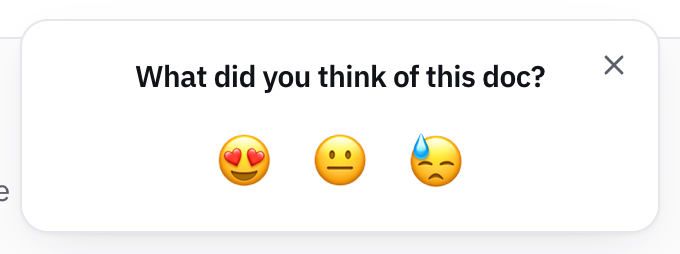 |
Extras are off until you switch them on.
Type | Description | Example |
Show Outdated Notice | Shows a short "This article may be out of date." note under the title of any article marked as stale. Readers never see the stale reason. | 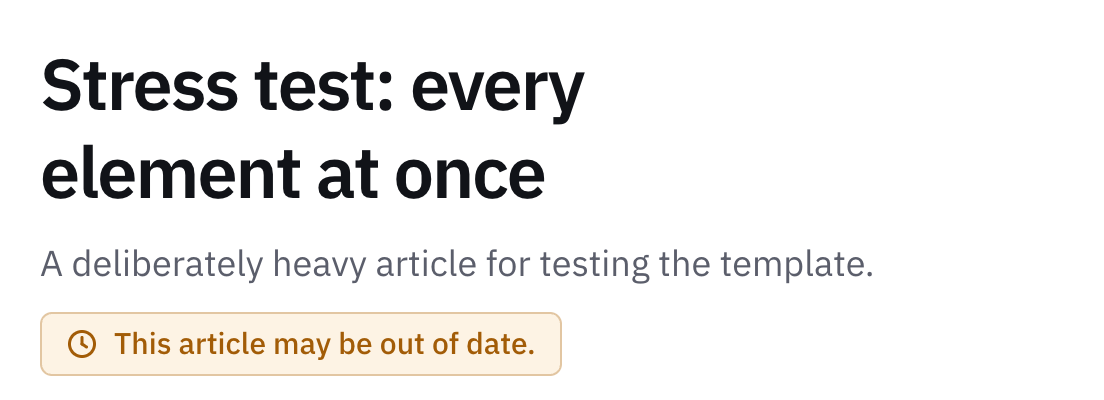 |
Animate Numbered Steps | Draws the line between the steps of a numbered list as the list scrolls into view. Readers who prefer reduced motion see the lines already drawn. | 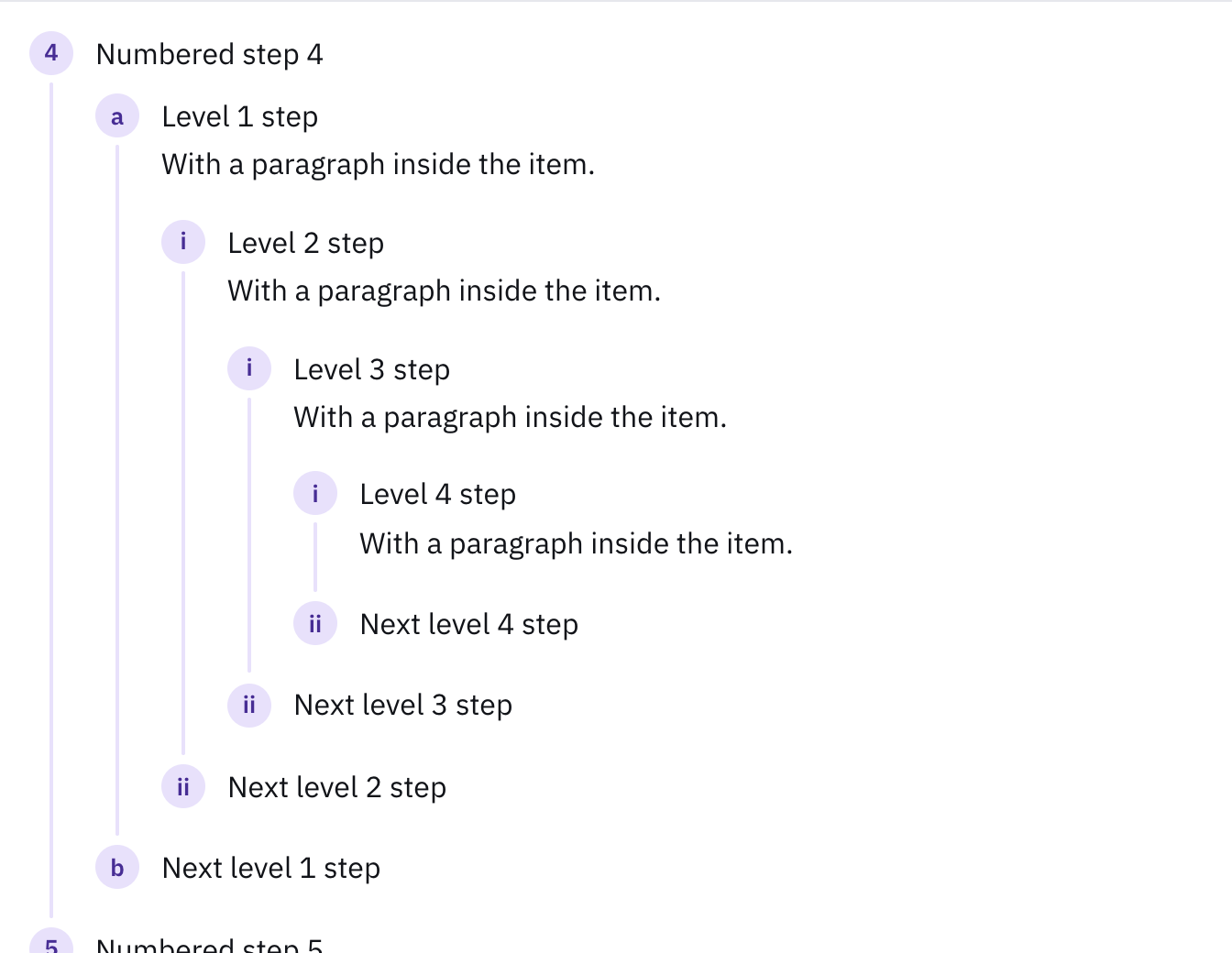 |
V5 Template Options
Type | Description | Example |
Disable Dark Mode | Turns off the template's dark mode, so your Knowledge Base always shows in light mode. | Readers no longer see the light/dark switch. |
Disable Authorship | Hides author information from your articles. | A cleaner look without a byline. |
Disable Feedback | Removes the feedback widgets from your articles. | Useful when you collect feedback another way. |
Solid Header | Switches the gradient behind the search area to a solid colour. | A more minimal home page that matches your brand colour. |
That's it! Mix and match these options to create the perfect look and feel for your Knowledge Base 🎨