

Article statuses make it easy to understand whether visitors to your knowledge base can see your article 👀
Understanding Article Statuses
By default all articles will start off as a Draft. This means nobody can see it unless they're logged into the HelpDocs dashboard.
You can then upgrade them to either Private or Published depending on how you want to share them.
Status | Can my team within the HelpDocs dashboard see this? | Can public visitors see this? |
Draft | ✅ Yes | ⛔️ No |
Private | ✅ Yes | 🔗 Only by direct link |
Published | ✅ Yes | ✅ Yes |
Archived | ✅ Yes, read only | ⛔️ No |
Changing an Article's Status
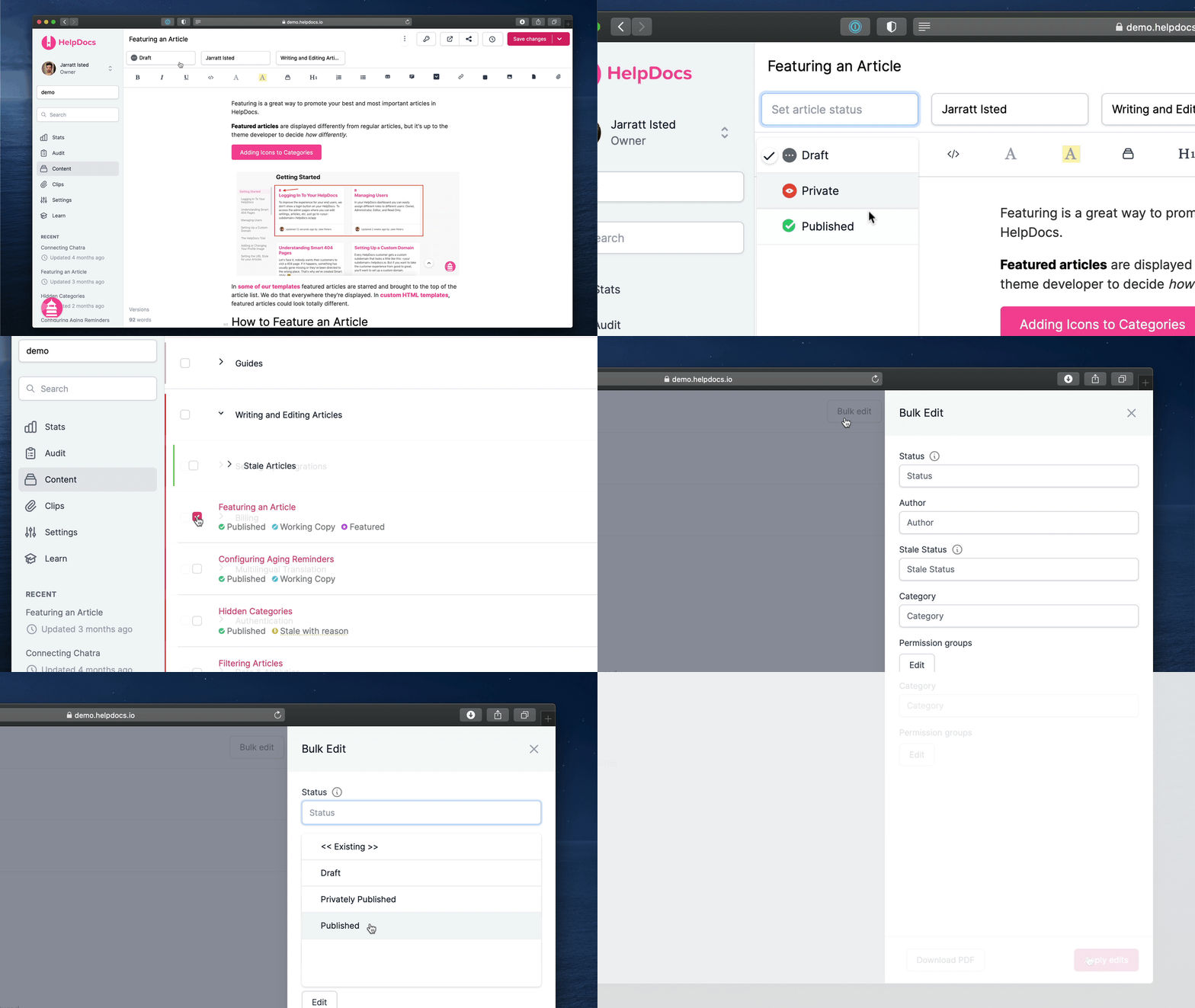
You can change an article's status in the article editor and from the content tab using Bulk tools.
From the Article Editor
- Click the Status button in the top left
- Select your new status
- Hit Save Changes
From the Content View
- Select the articles you'd like to update
- Click Bulk Edit
- Change the Status
- Click Apply edits
A Note on Archived
Archived isn't a status you'll find under the Status button or in Bulk Edit. It's set by archiving an article, which takes it off your help center and freezes it, and cleared by unarchiving.
Unarchiving always returns an article as a Draft, whatever status it had when you archived it. Publish it again from there if it should go back on your help center.