

Some articles stop being useful but shouldn't disappear. Archiving takes an article off your help center and keeps it, so you can bring it back whenever you want.
Archiving or Deleting?
Deleting moves an article to Recently deleted. You can restore it for a short while, and after that it's gone.
Archiving has no time limit. The article stays in your content list, in the category it was already in, and you can unarchive it whenever you want. It's the right choice for content that's out of date but worth keeping, like a guide to a feature you've replaced.
Not sure which one you need? Work through it below 👇
This is an interactive decision guide. Please view it online.
It'll sit in Recently deleted for a short while in case you change your mind, then it's gone permanently.
Archiving makes an article read only, so if you still need to edit and publish it, there's no need to archive at all.
It comes off your help center but stays in its category, read only, ready to unarchive whenever you want it back.
How to Archive an Article
What happens when I archive an article?
- It comes off your knowledge base. The old URL returns a 404 unless you add a redirect.
- It drops out of knowledge base search, your sitemap, and your llms.txt file.
- It becomes read only. It takes no edits, no new comments, and no AI suggestions until you unarchive it.
- It stays in its category and keeps its position, tags, permissions, revisions, and article ID.
- Nobody can read it on the frontend, including your own team while logged in. Read it in the dashboard instead.
- If you use multilingual, every language is archived, not only the one you're looking at.
From the Content View
- Hover over the article you want to archive
- Click the
 Archive icon on the right of the row
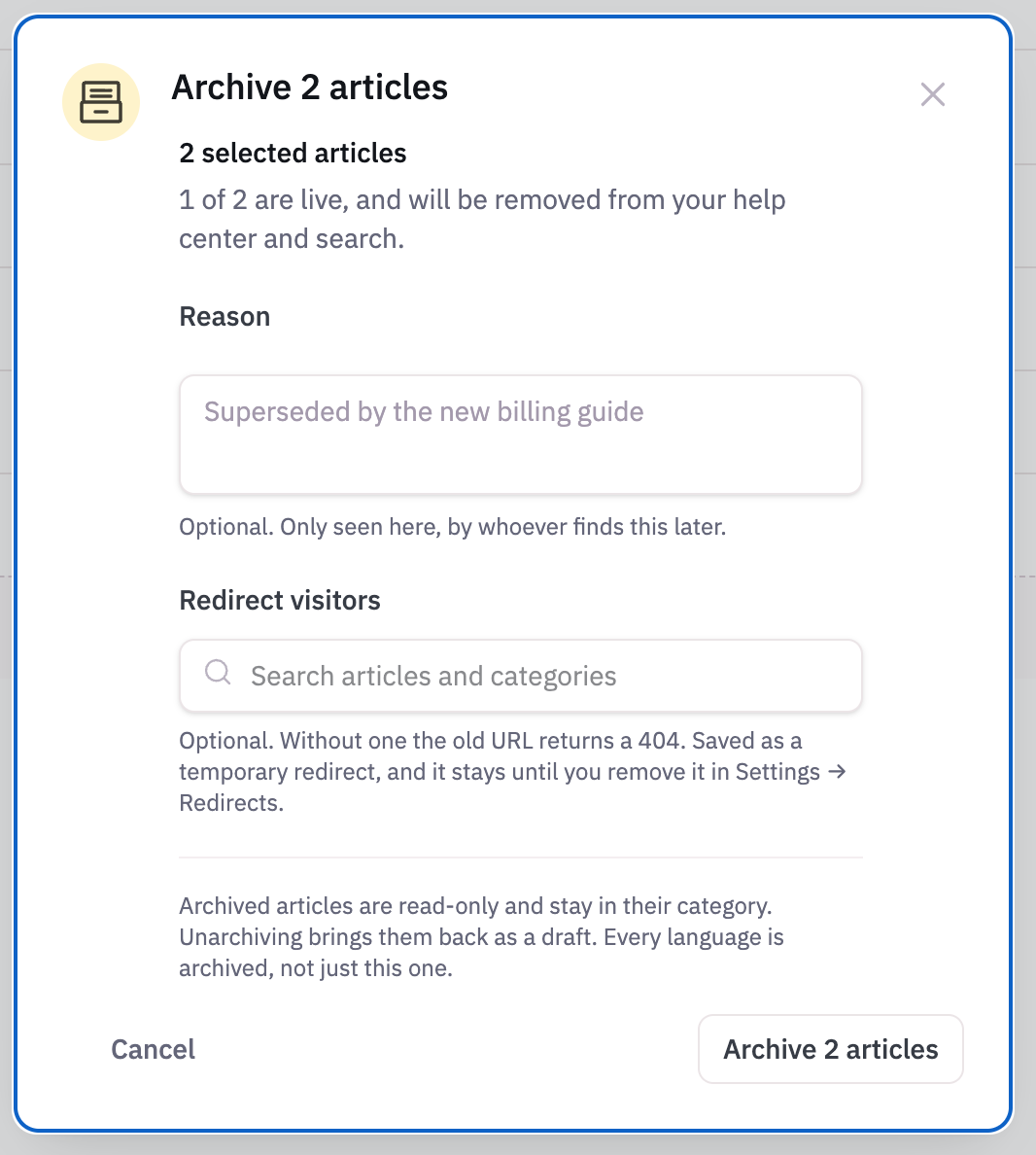
 - Add a reason if you want one
- Choose where to redirect visitors, if the article is live
- Click Archive article
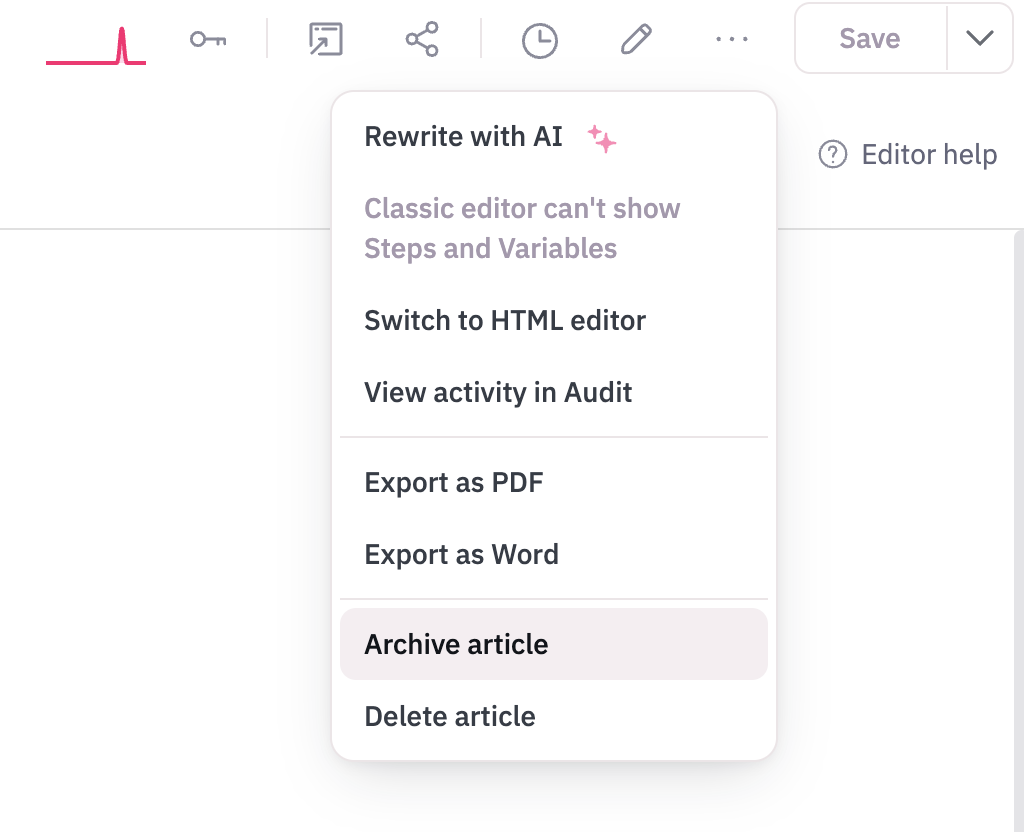
From the Article Editor
- Open the article
- Click the more options menu in the top right
- Select Archive article
- Click Archive article again to confirm
Redirecting Visitors
When you archive a single live article, the dialog offers to send its visitors somewhere else. Search for the article that replaces it and pick it.
It's saved as a temporary redirect. Head to Settings > Redirects whenever you want to remove it. Temporary rather than permanent, because archiving can be undone, and a permanent redirect sticks around in browsers long after the article comes back.
The redirect is only offered for one live article at a time. A redirect points one URL at one destination, so there's nothing sensible to offer when you're archiving nine articles at once.
Archiving Several Articles at Once
- Select the articles in the Content view
- Click Archive in the selection bar
- Check how many of them are live in the dialog
- Click Archive articles
Finding Archived Articles
Archived articles stay in their category, folded into a row that says how many there are. Click 3 archived, or however many you have, to show them.
You can also filter the Content view by the Archived status to see all of them in one list.
Click Quick look on any archived row to read the article, along with the reason it was archived, who archived it, and when.
Unarchiving an Article
- Find the archived article, either in its category or under the Archived filter
- Click Quick look
- Click Unarchive
Who Can Archive
Action | What you need |
Archive a draft | Permission to manage the article |
Archive a published or private article | Publish permission, because it takes a page off your help center |
Archive several at once | Bulk delete permission, plus publish permission if anything selected is live |
Unarchive | Permission to manage the article. Nothing becomes public, so no publish permission needed |
Archiving with AI Assistants and the API
Our MCP server has three tools for this: archive_article, unarchive_article, and list_archived_articles. The rules are the same as in the dashboard, so archiving a live article still needs publish permission, and an archived article refuses edits until it's brought back.
In the API, every article carries is_archived, and an archived one also carries archived_at, archived_by, and archive_reason. Editing an archived article returns a 409 until you unarchive it.