

When someone signs in to HelpDocs, they stay signed in for 7 days after they last use it. Session limits let you sign people out sooner: after a period of inactivity, after a set length of time, or both.
Setting Session Limits
You need to be an Owner or Administrator to change these settings.
- Head to Settings > Sign-in & access
- Under Sessions, pick a time for Sign out after inactivity
- Pick a Maximum session length
- Click Save changes
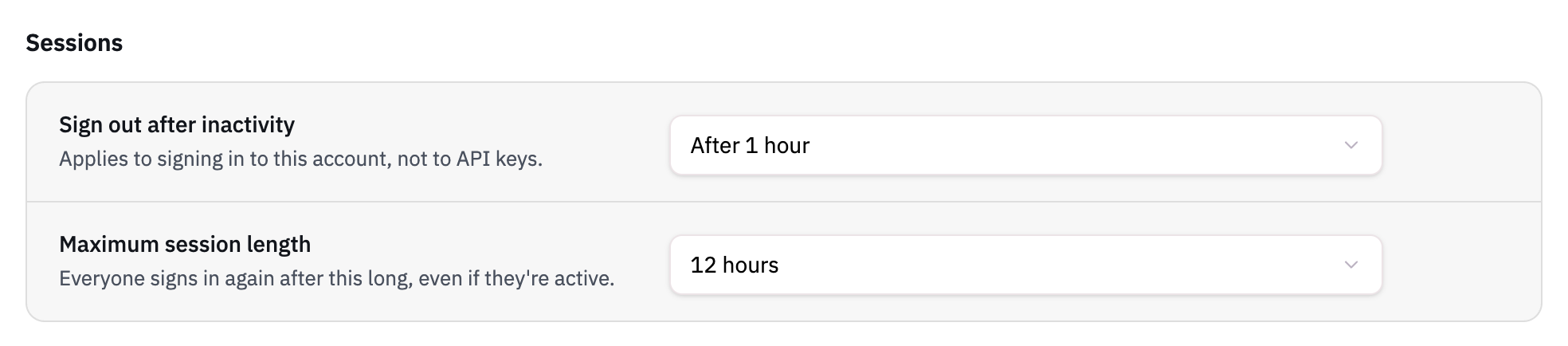
The limits apply to everyone on your account from their next click or page load. People who are already past a new limit are asked to sign in again.
What Each Setting Does
- Sign out after inactivity: signs someone out once they haven't used HelpDocs for this long. Choose 15 minutes, 30 minutes, 1 hour, 4 hours, 8 hours, or 24 hours. The default is 7 days.
- Maximum session length: signs everyone out this long after they signed in, even if they're active. Choose 8 hours, 12 hours, 24 hours, 7 days, or 30 days. The default is no maximum.
You can use one setting, both, or neither. To go back to the default, pick the option marked (default).
What Counts as Activity
- In the dashboard: clicking, typing, scrolling, or touching the screen. A tab left open doesn't count, even though it keeps checking for updates in the background.
- In your help center: opening a page.
The inactivity timer can run up to 5 minutes longer than the time you pick, so someone reading a long article without clicking isn't signed out mid-read.
What People See When a Session Ends
- In the dashboard: a Session Expired window asks them to log in again. The page stays open while they sign in, so they can carry on afterwards. They can also log out from there.
- In your help center: if your help center only shows content to people who sign in, they're sent to the sign-in page. If you've set Send the sign-in page somewhere else, they go there instead, for example straight to your SSO provider.
Signing in again starts a new session, and both limits count from then.
How Session Limits Work With SSO
- The limits apply however someone signed in: with a password, SAML, OpenID Connect, or Slack. They also apply to readers who sign in to a restricted help center.
- They end the HelpDocs session, not the one with your identity provider. If someone is still signed in there, signing back in to HelpDocs may only take a click. To make people enter their credentials again, set a session length in your identity provider too.
- With Require SSO on, people sign back in with SSO as usual. The two settings work independently, so turning one on or off doesn't change the other.
What Isn't Affected
- API keys: session limits only apply to signing in. API keys keep working.
- Other HelpDocs accounts: the limits only apply to your account. If someone also belongs to another HelpDocs account, they stay signed in there.
If your plan changes and no longer includes session limits, sessions go back to the defaults.