

Knowledge Bases look best when they're customized to fit your brand and style. Luckily HelpDocs has a ton of customization options to change the look and feel of your docs 🦄✨
While big changes to the look and feel of your docs are super fun they can also be kinda stressful. Especially if your docs are already live to customers. Breaking things in production's never fun 😭
The Customize editor is where you make those changes, with a preview of your Knowledge Base right next to them. If your plan includes .dev, everything you change goes into a draft, and .dev is where that draft lives, so your users won't see a thing until you publish it.
You can create custom HTML templates or test out CSS and JavaScript without impacting your users. Then when it's perfect you can ship your changes all at once 🎉
Finding your way around the Customize editor
Head to Settings > Customize. Your settings are on the left, split across three tabs, and your preview is on the right.
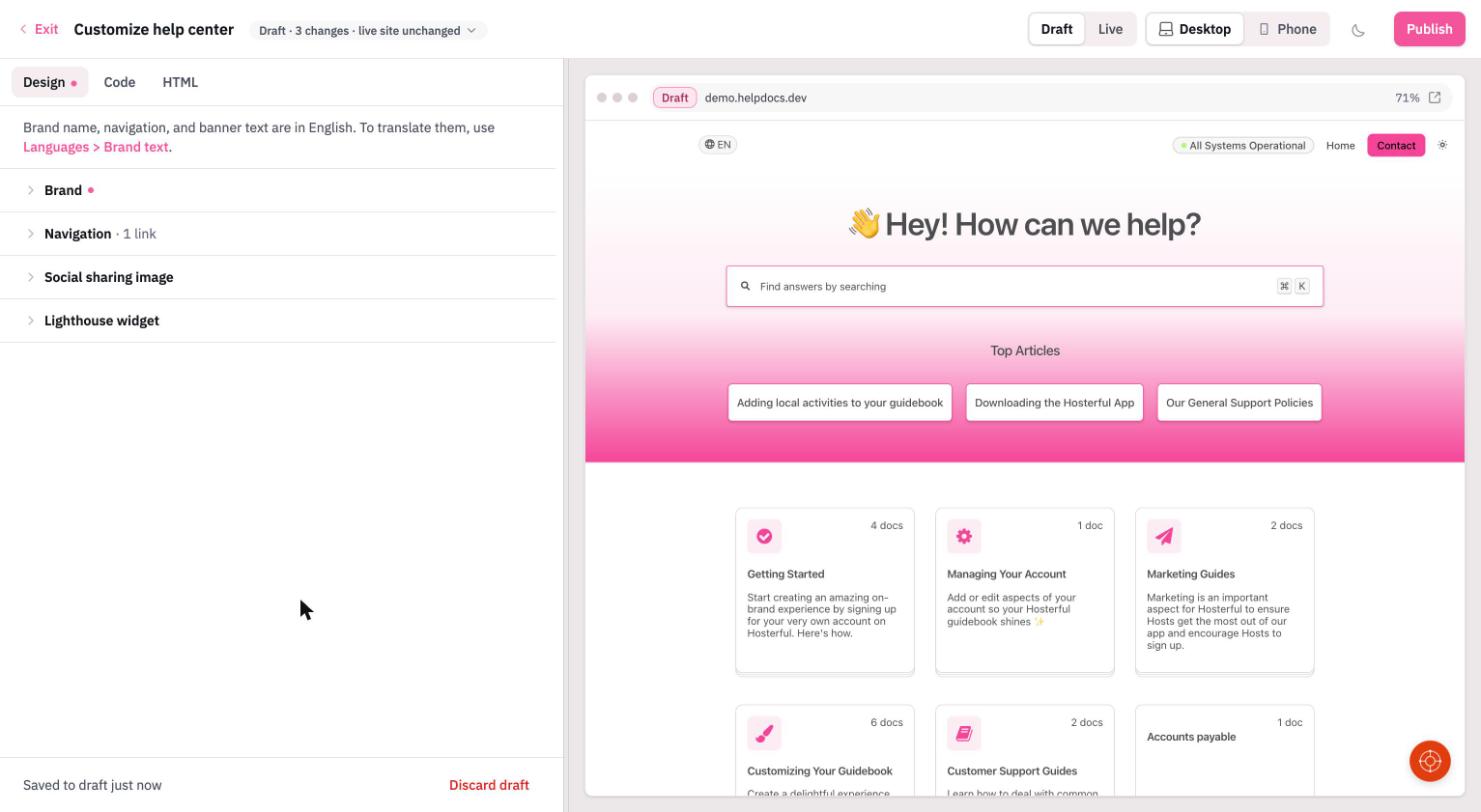
- Design: your logo, favicon, colors, template, navigation links, and social sharing image
- Code: your custom CSS and JavaScript
- HTML: your custom HTML template
.dev depend on your HelpDocs plan. Without them, the editor has a Save button instead of Publish, and your changes go live as soon as you save.Making changes in a draft
There's nothing to switch on. If your plan includes .dev, every change you make in the editor goes into your draft and your live Knowledge Base stays as it is.
- Choose the tab you'd like to change
- Make any changes you want. They save to your draft as you go, and you'll see something like Saved to draft just now at the bottom of the panel
The top of the editor keeps count, with something like Draft · 3 changes · live site unchanged. Click it to see everything in your draft, jump to a change, or Undo just that one.
Your team shares one draft, so anyone who can edit your settings is working on the same set of changes.
Publishing your draft to the live version
Fixed that pesky CSS issue? ✅ Got your template looking just so? ✅ You're ready to go live!
Once you're happy with the changes in your draft you'll need to publish them to your live Knowledge Base. Only then will they be visible to your users.
Don't worry there's no need to copy/paste things here. You can publish all your changes at once with a couple clicks.
- Click Publish at the top of the editor
- Read the warning and check the list of changes. I know your changes are awesome. I know you probably hate warnings. But it's useful I promise 👀Publishing overwrites the live version of everything in your draft, and your live Knowledge Base updates straight away. This can't be undone.
- Hit Publish
If any of those settings have changed on your live Knowledge Base since they went into your draft, you'll see Live changed since you started this draft first. Click Keep mine to publish your draft over them, or Cancel to go back and take a look.
Discarding your draft
Made any terrible errors with your customizations (happens to the best of us 😩)? You can throw away your draft and go back to matching your live Knowledge Base in a couple clicks. Here's how 👇
- Click Discard draft at the bottom of the panel
- Read this warning too. I know you probably learned from the warning before. And you're excited to make your changes. I know warnings still kinda suck. But it's there for your protection 👷This throws away every change in your draft. Your live Knowledge Base stays as it is.
- Hit Discard draft
Previewing your changes
The whole point of a draft is so you can see your changes without pushing them live. But how do you see them? With the preview right next to the editor of course!
- Use Draft and Live at the top of the editor to switch which version you're looking at. This only changes the preview: your edits still go into your draft
- Use Desktop and Phone to check other screen sizes, and the dark mode button if your template has a dark mode
- Click the address bar above the preview to open it in a new tab. Your draft is at
<yoursubdomain>.helpdocs.dev(even if you use a custom domain) where you'll see all your articles and categories as normal plus all the changes in your draft 🎉
.dev subdomain visibility
Using .dev will not affect your SEO or confuse users with multiple copies of content on the internet. It's a preview area that's only accessible by certain members of your team that can edit HelpDocs Settings.
Specifically only members of your HelpDocs team that're Administrators and above can view changes made with .dev. Anyone who isn't signed in is asked to sign in first, and anyone else is sent to the same page on your live Knowledge Base.